Introducing ChatGPT Apps and MCP Apps Builder
Today, we're excited to introduce the ChatGPT / MCP Apps Builder inside the MCPJam Inspector. This release brings the first local emulator for both ChatGPT Apps and MCP Apps (SEP 1865), allowing you to instantly preview, debug, and iterate on your app's UI without needing a public endpoint or a ChatGPT subscription.
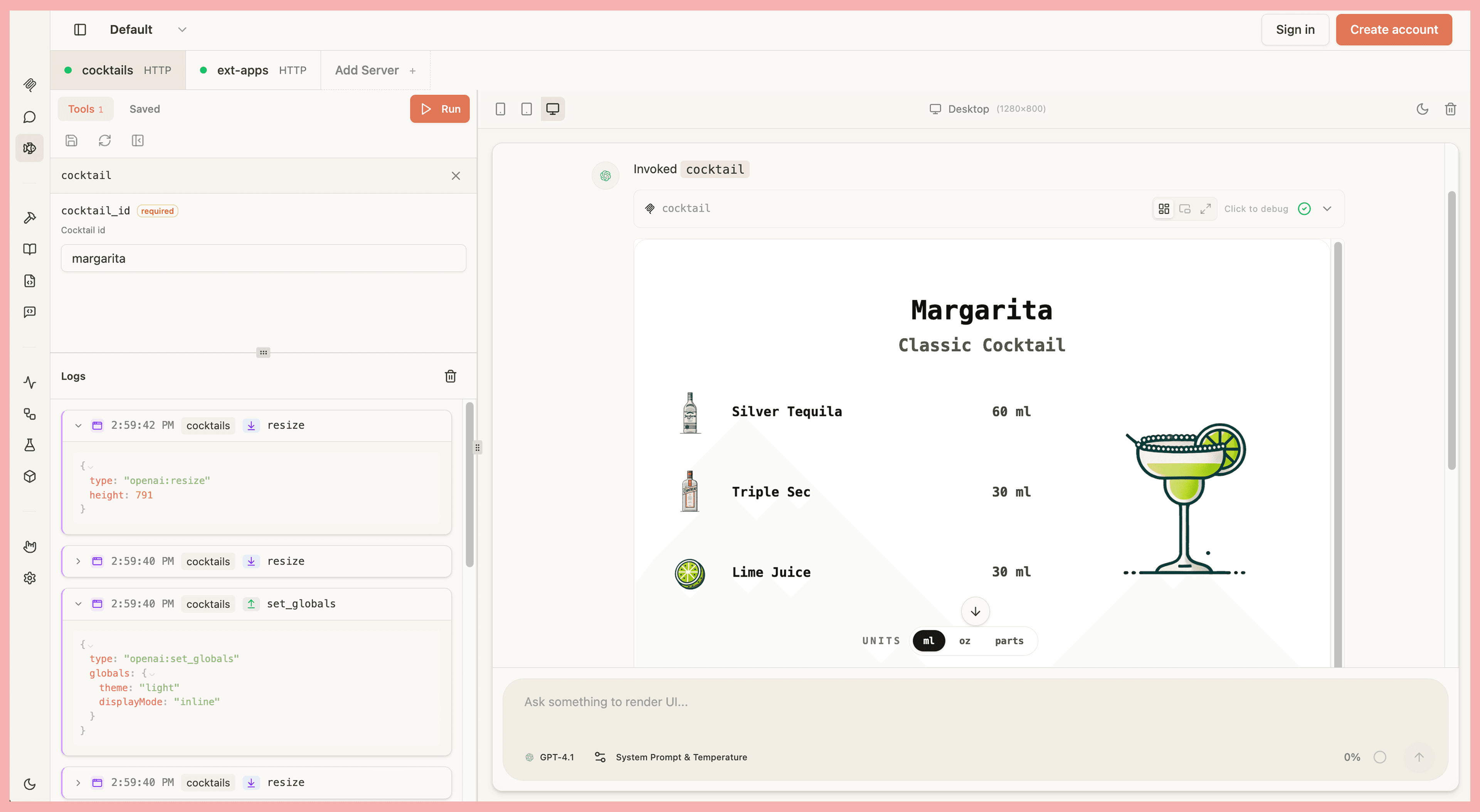
New features
Logger view: Inspect everything happening across the windows.openai API. See calls like callTool(), sendFollowUpMessage(), and full JSON-RPC traffic for MCP Apps. Perfect for debugging complex app flows.
Tools view: Browse all tools that render widgets. Executing a tool immediately triggers its corresponding widget in the preview panel, helping you confirm that the UI behaves as expected.
UI View: The right-side UI panel now renders your widget UI live, along with helpful debug data such as widget state, globals, and structured content. You can also simulate layouts across desktop, tablet, and mobile, making it easier to validate responsive design.
With having both the UI view and tools view together, instantly go back and forth between deterministic tool call testing (like you would find in MCP Inspector) and a LLM playground experience.
ChatGPT apps and MCP Apps support
Until now, building a ChatGPT App required:
- A ChatGPT subscription with developer mode
- Exposing localhost via ngrok to test your app
MCPJam removes both requirements.
You can now:
- Develop ChatGPT Apps entirely locally
- Preview UI instantly using our ChatGPT Apps emulator
- View all windows.openai API calls
For MCP Apps, MCPJam is also the first MCP client with complete support for MCP Apps UI development.
How to use the Apps builder
If this is your first time using MCPJam (or you are exploring how it compares to MCP Inspector V2), you can start the inspector with a single command:
npx @mcpjam/inspector@latestOnce the inspector is open:
- Connect to a ChatGPT App or MCP App from your local server.
- Navigate to the "MCP UI / ChatGPT Apps" tab.
- Ensure your app is selected in the apps list.
- Pick a tool from your server and execute it.
- Its UI widget will appear immediately on the right-side panel.