ChatGPT Plugin Extensions: what changes for app builders
OpenAI's new Plugin Extensions give your app more ways to work inside ChatGPT. People can now open it from the sidebar, use it beside a conversation, or open supported files in your app's interface.
This lets people browse content, edit files, and change your app's settings within ChatGPT. Your app can also share context with the model as they work, so the conversation can follow what they're doing in the interface.
Opening, navigating, and configuring your app
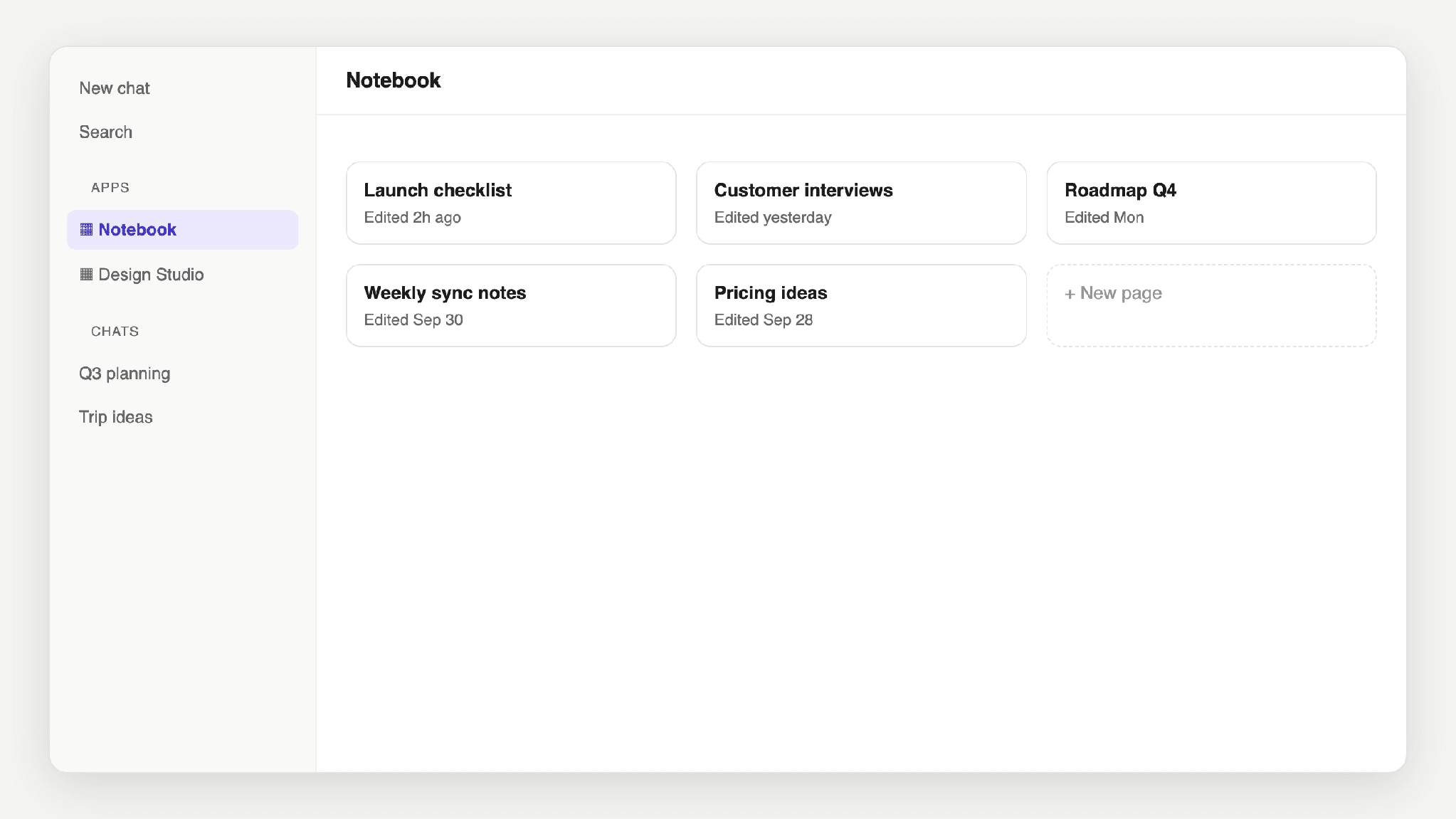
Sidebar apps add an entry to the ChatGPT sidebar that opens your app fullscreen. People can open it from there to browse content or work in your interface.
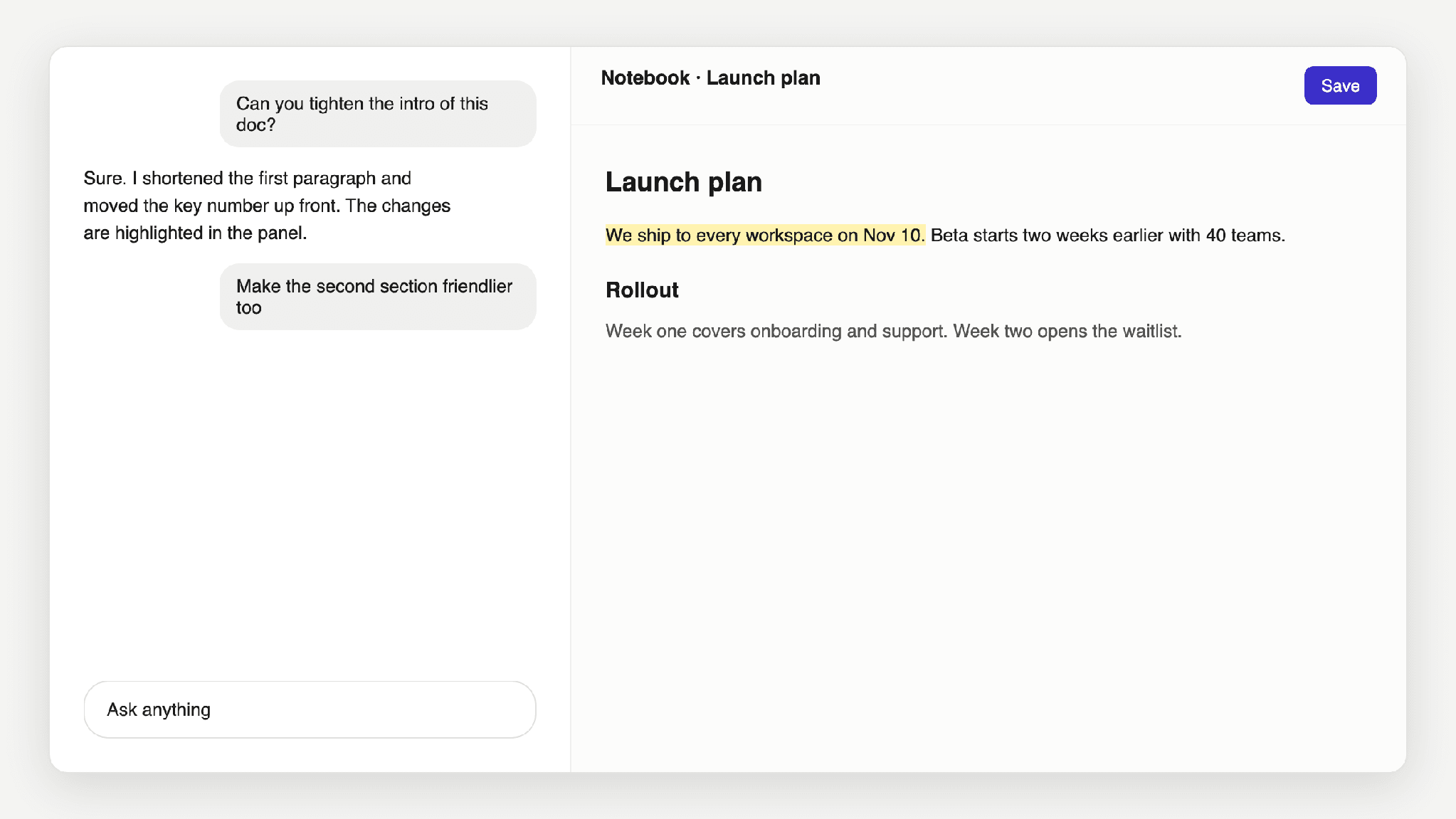
Conversation panels let people keep your app open beside the chat. They could edit a document while asking ChatGPT questions about it, with both on screen.
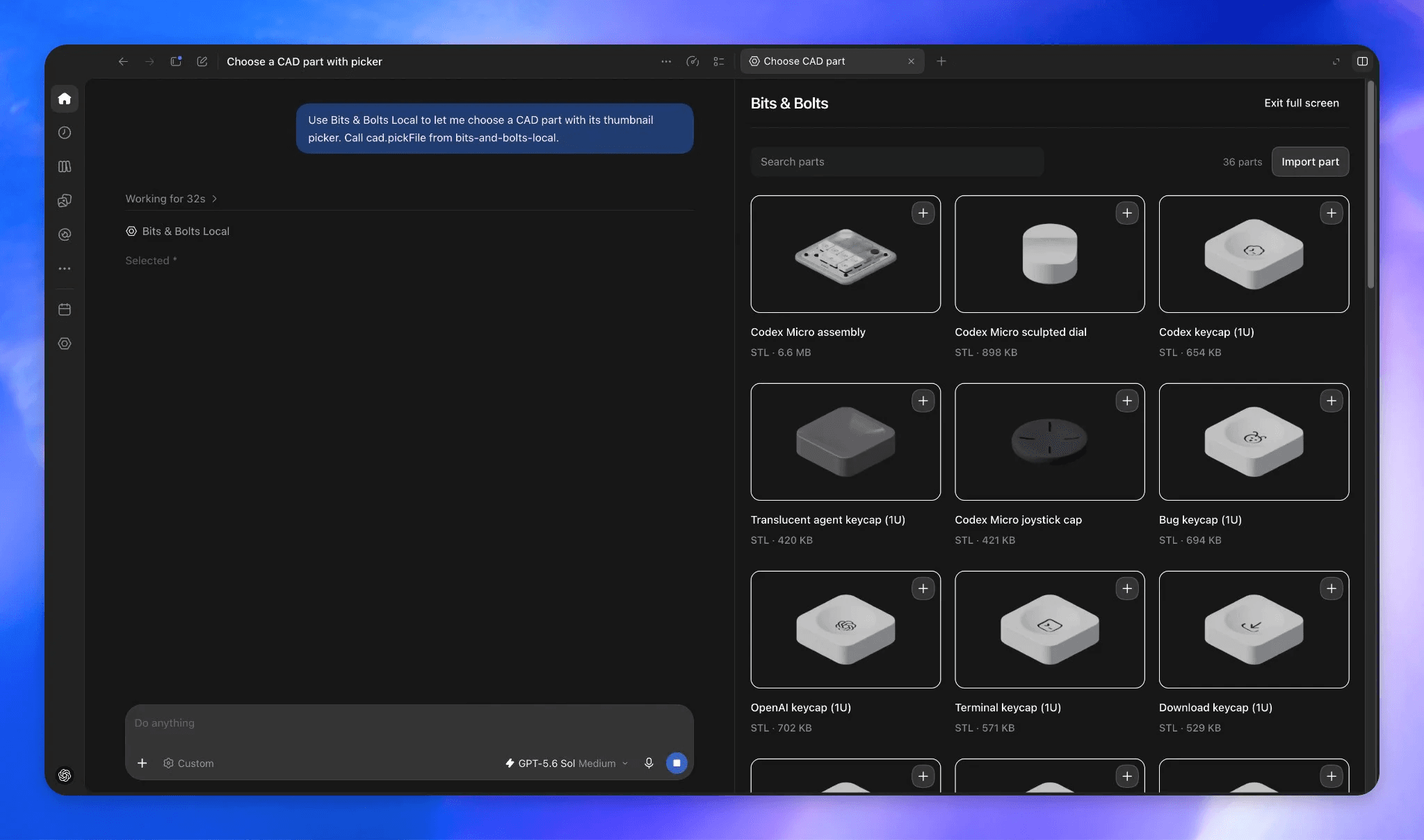
Deep links open a specific page or item within your sidebar app. A link to a document can take people straight to it, instead of making them search for it again.
Plugin settings give people a place to change your product's settings within ChatGPT, such as choosing a default workspace or notebook.
Files and screen space
File viewers and editors open supported file types in your app's interface. People can read a file, see updates, and save their changes without leaving ChatGPT.
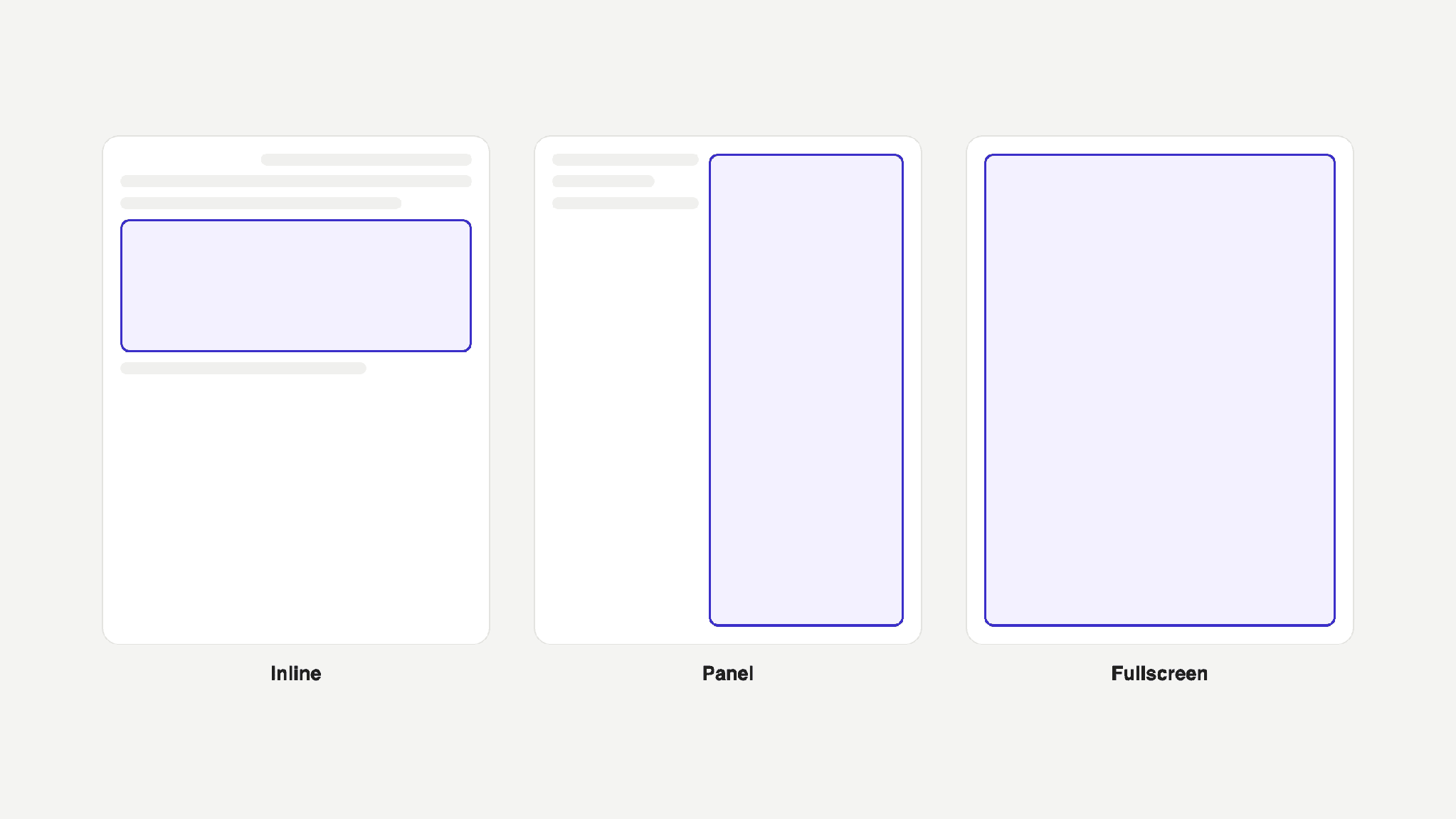
Display modes let your app use the space a task needs. A short result may fit inline, while an editor or a collection of files may be easier to use in a larger view.
Sharing context and collecting input
Model-App Context lets ChatGPT and your MCP App share context in both directions. If someone selects another item in your interface, the app can share that selection with the model. ChatGPT can then use it when responding to their next request.
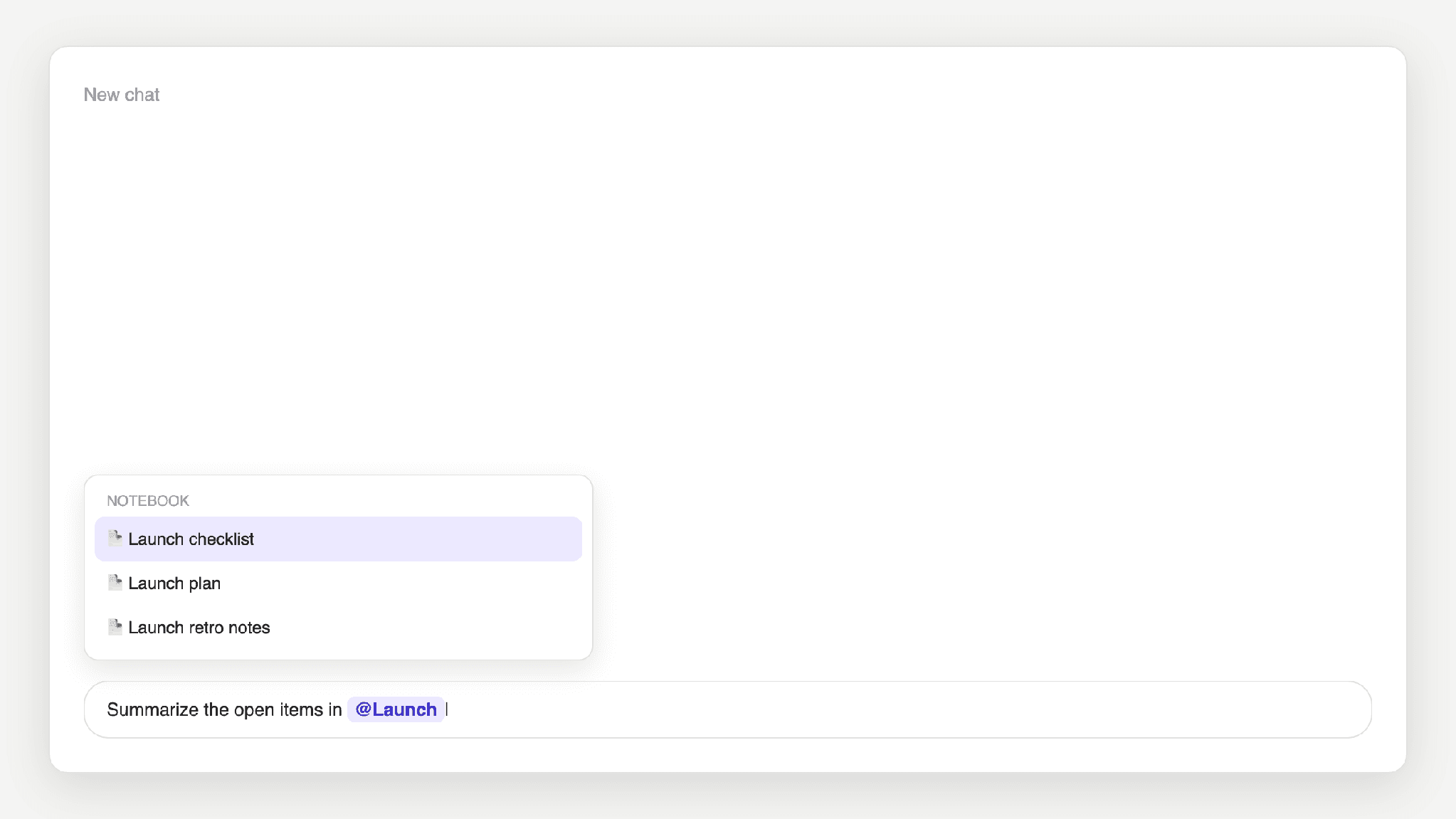
Composer mentions let people find and select content from your plugin in the ChatGPT desktop composer. They can include a file or item in their request without having to explain where to find it.
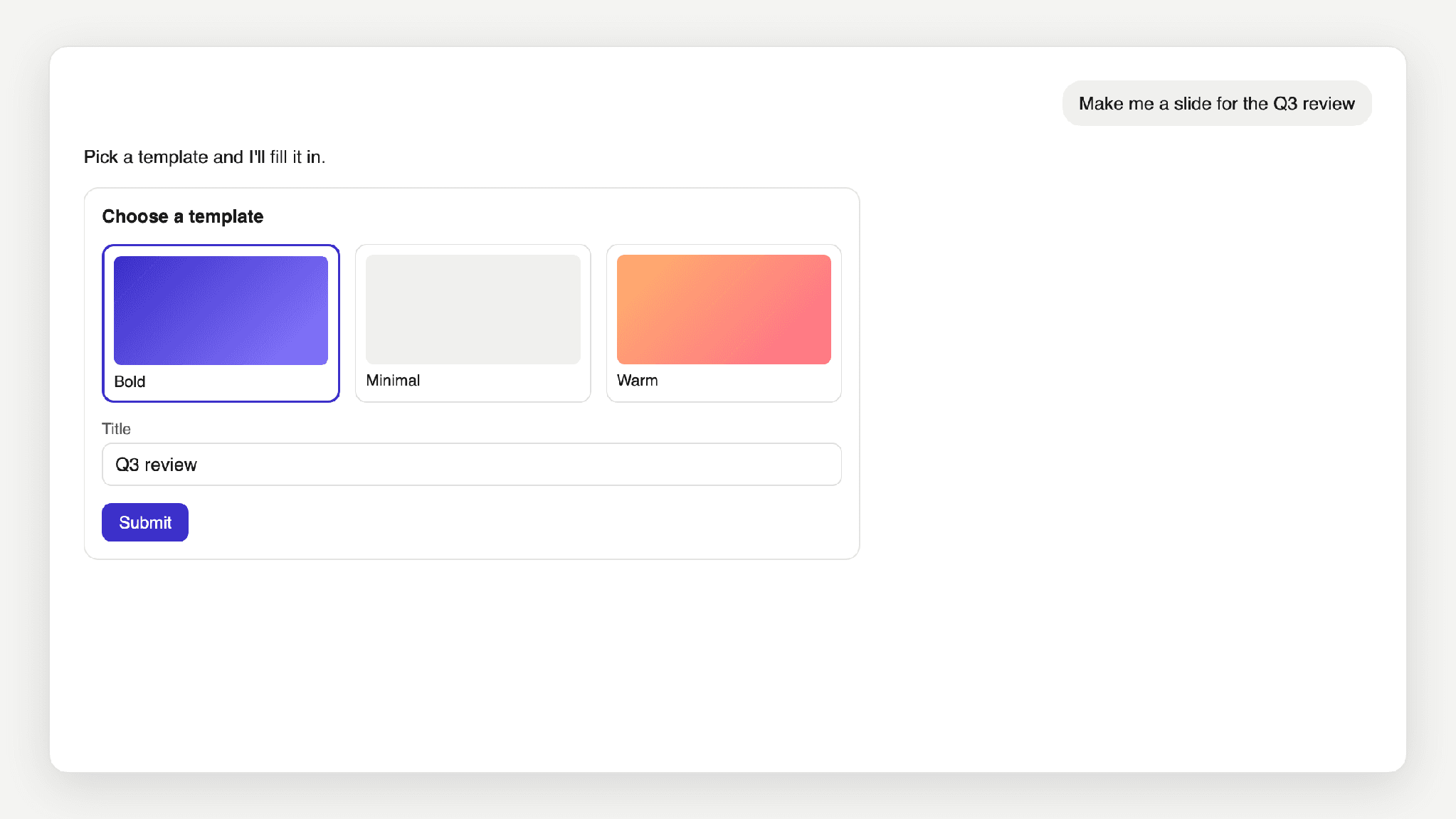
Rich forms let tools ask people to fill in fields or choose from a set of options, including images. Their answers go back to the tool as structured input.
How they're built
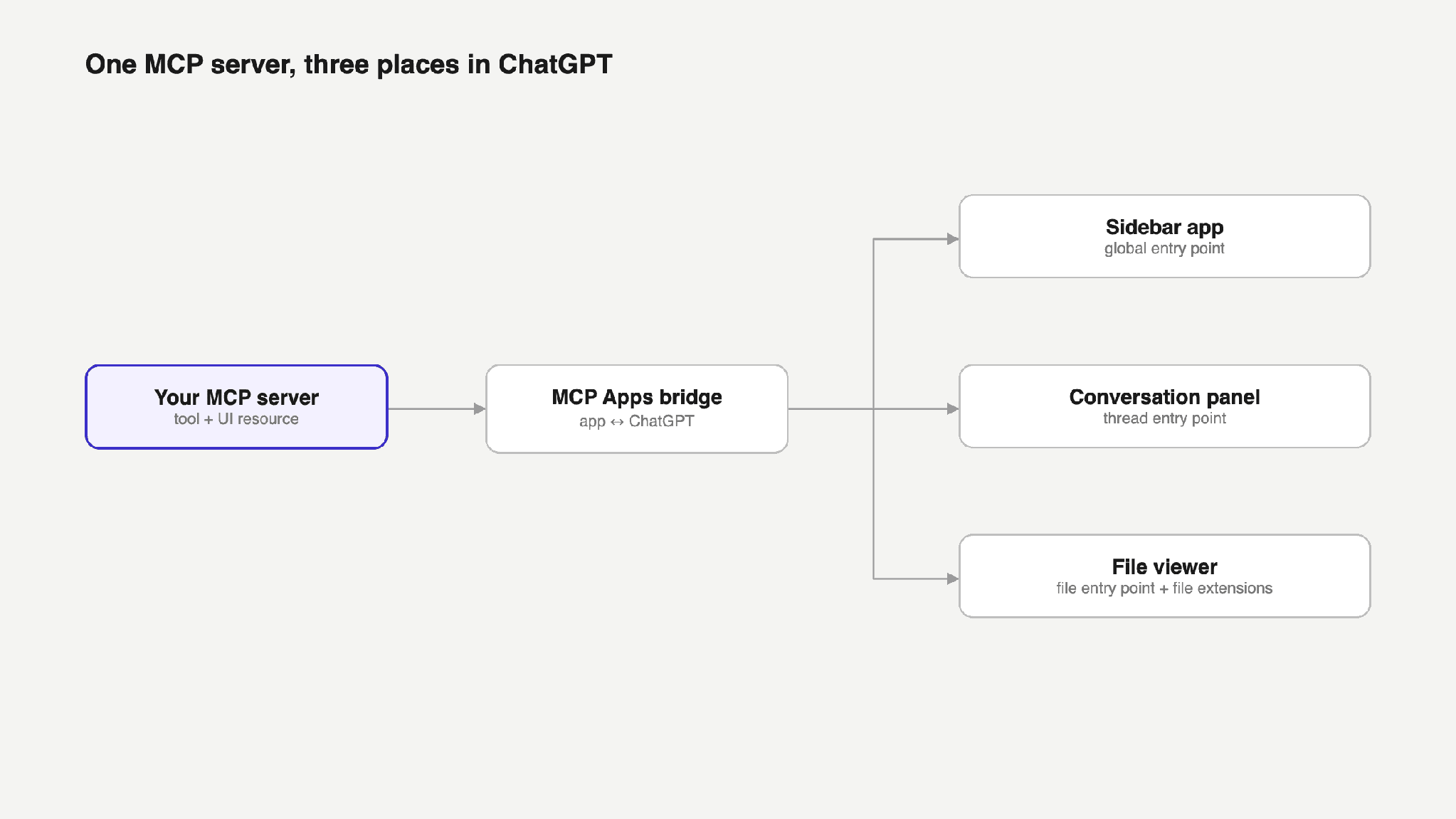
These extensions build on MCP and MCP Apps. Your MCP server links a tool to a UI resource, and the app communicates with ChatGPT through the MCP Apps bridge. OpenAI's extensions add the ChatGPT-specific ways to open and interact with the app. We first covered them in our OpenAI DevDay 2026 recap.
A sidebar app declares a global entry point in its tool metadata. A conversation panel uses a thread entry point. A file viewer declares a file entry point and lists the file types it supports. You can add whichever extensions fit your app. The Plugin Extensions docs list the metadata for each one.
What to test
Pick something a person would use your app for, like editing a file or filling out a form, and do it from start to finish in ChatGPT. Open the app, navigate to the content, make a change, and continue the conversation.
Does a deep link open the intended item? Are edits saved when someone changes a file? Does ChatGPT receive the current selection when someone switches items? Does a form send the values people chose back to the tool?
You can use MCPJam to call your tools and inspect their inputs and results as you test the workflow. Check that each call receives the expected data and returns what the app needs to continue.