Share and mock MCP app views
We're excited to announce the launch of Views within MCPJam. MCPJam's app builder lets you locally inspect your ChatGPT app / MCP app's UI views. With MCPJam Views, you can now save your UI iterations, effectively taking a screenshot of your UI in that moment.
With views you can:
- Save views to track your app's UI progress over time
- Share different UI drafts with teammates
- Mock data to see what the UI would look like in different states
Creating a view
To save a view, connect to your MCP app in the App Builder and trigger the UI to appear. You should see a button next to the green check mark "Save a view".
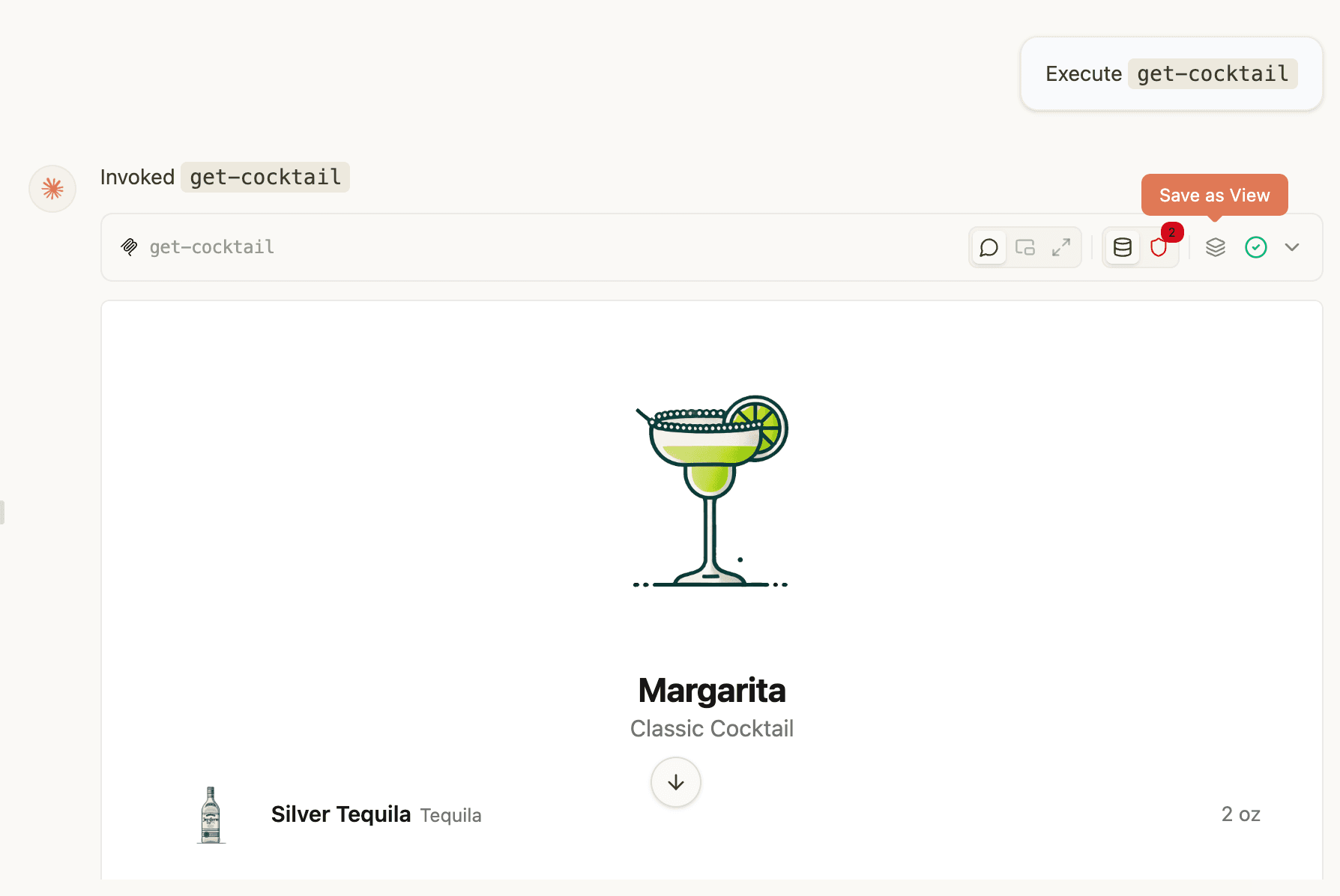
This saves the view in its current state to the Views tab. Saving a view is effectively like taking a screenshot. The HTML / Javascript of the app is saved, along with the info needed to hydrate that view such as tool input/output, widget state, and other metadata the client had at the time.
You can then render the saved view in the Views tab. When rendering happens, the client is injecting that hydration data back into the widget.
Editing view input and outputs
With MCPJam Views, you can mock data (tool input & outputs) to see what your View would look like in different states. Change the tool's toolInput, toolOutput, and widgetState and immediately see what that view would look like in production.
The best part is that you don't have to be connected to your MCP app to view them. The HTML and tool input / outputs are saved and rendered in isolation.
Sharing with your team
To share a view, invite other people to your MCPJam project. Once they've joined, the views created are automatically accessible to them. Effortlessly collaborate on your views, iterate and discuss different UI concepts.
Get started with views on the latest version of MCPJam!