Publishing an MCP server in the Claude Connectors
There are two ways people can use your MCP server. The first is that you send them a URL and they paste it into Claude's custom connector settings themselves. The second is that they open the Connectors Directory, search for your server by name, and click Connect. In this blog, we’ll talk about how you get from the first to the second, and what Anthropic checks before your server gets listed.
The directory is the list of connectors that users can browse inside Claude. Having your server listed there does not change how your server works once users are connected. It just makes your server easier to find.
Instead of sharing the server URL yourself, users can discover and connect to it from the product they are already using. However, before your server is listed, you need to complete Anthropic’s review process.
Why public directory listing is important
Most MCP server discovery still happens through a README, a post on X, or a documentation page. That works when users already know your server exists, but it is less helpful for people searching for a connector that solves a specific problem. There is also a trust barrier: asking someone to paste an unfamiliar URL into a connector that may access private data is a lot to ask. A directory listing gives users an extra signal that the server has gone through a review process.
The review can also surface issues that are easy to miss while building. Anthropic verifies whether or not the server connects and if the tools run. It also checks whether users can understand what the connector does, what data it accesses, and what they are authorizing. That may seem like an extra step, but it also makes it easier for users to understand what they are connecting to and decide whether or not they trust it.
There is also a discovery benefit. Once your connector is listed, users can find it while browsing Claude’s Connectors Directory, where connectors are presented with their use cases, capabilities, and availability. That gives your connector a way to reach people who may not already know your product or have its MCP URL.
Tool design and reliability
Tool design is a major part of the review. Each tool should have a clear purpose, map to a recognizable user intent, and expose inputs that Claude can reliably understand and fill. Its name, description, schema, and safety annotations should also match what the tool actually does.
As one example, avoid putting unrelated operations behind a single generic tool such as api_request or ticket_operations. A tool that can search, create, update, and delete depending on an operation field mixes different user intents, required inputs, and safety levels. Splitting those actions into focused tools such as search_tickets, get_ticket, and update_ticket_status gives Claude clearer choices and makes each tool’s behavior easier to describe and review.
Each tool also needs a clear title and the correct annotation. Read-only tools use readOnlyHint: true, while tools that change or delete data use destructiveHint: true. These annotations are not just labels. Claude uses them to decide when the user needs to confirm an action. A read-only tool may run without prompting every time, while a destructive action should always ask first. Tool names also need to stay within 64 characters.
Tool descriptions are also closely reviewed. They should explain what the tool does, not give Claude instructions about how to behave. A description may be rejected if it tells Claude to use unrelated software, interferes with other tools, loads behavioral instructions from an external source, includes hidden or encoded text, or promotes a product. When a tool accepts freeform paths or request bodies, the description should also clearly identify the API it calls. Saying “makes a request to the API” is too vague. For example, naming the Slack Web API and linking to its documentation is much clearer.
The server also has to work reliably. Every tool should return a useful response when called with valid parameters, and errors should explain what went wrong instead of returning only “Internal Server Error.” Responses should include what the user needs without dumping unnecessary data. Your server should only collect the conversation information required for the task, and it should not access Claude’s memory, chat history, or user files. It should also call APIs that belong to your service, or APIs you are legitimately authorized to proxy, using a domain that matches your product.
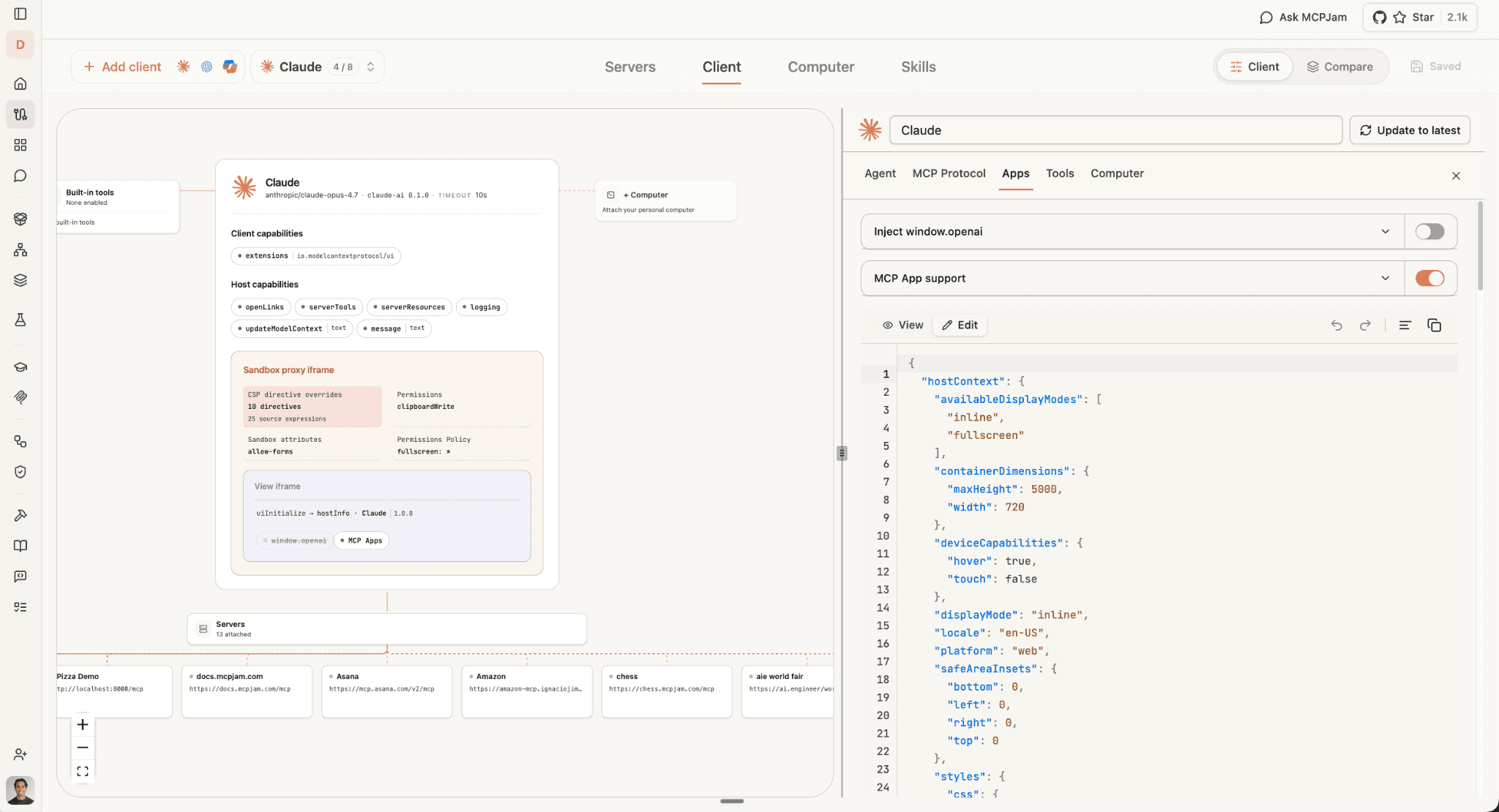
You can test this directly in MCPJam Inspector. Start by connecting the MCP server you plan to submit and adding the Claude client you want to test against.
Swipe to inspect the full diagram →
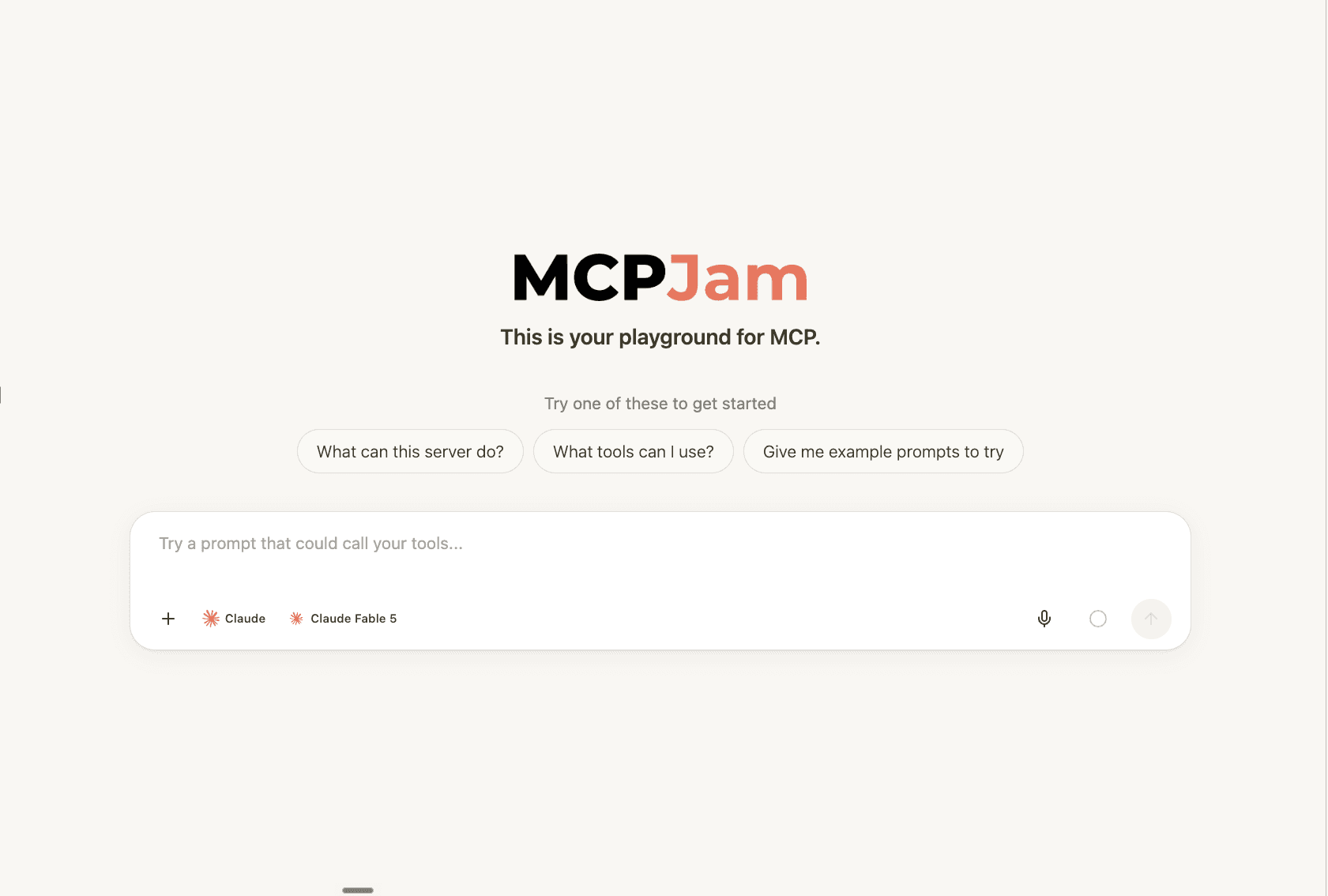
Open the Playground and run the kinds of prompts you expect real users to send. You can see which tool Claude selects, the arguments it sends, and the response returned by your server.
If something does not behave as expected, open the Trace view to follow the full user → agent → server flow and inspect each tool call, its arguments, results, errors, and timing.
Once you have representative prompts working correctly, turn those prompts and their expected behavior into eval cases. You can then rerun the same scenarios after changes to catch regressions instead of manually testing every workflow again.
What you need to have ready before you start
Before opening the submission flow, make sure you have:
- A Team or Enterprise organization in Claude.ai
- Owner access or a role with Directory management permission
- A publicly accessible remote MCP server
- A working authentication flow, if required
- Clear tool names, descriptions, and input schemas
- A fully populated test account for the reviewer
- Public documentation, privacy policy, and support links
- A connector name, description, icon, categories, and URL slug
- Screenshots, if you are submitting an MCP App
Remote MCP servers are submitted through the admin settings in Claude.ai, so you need a Team or Enterprise organization. If you have an individual plan, you won’t have access to those settings.
By default, only organization Owners can submit a connector. Enterprise organizations can also create a custom role with Directory management permission and give someone else access. Desktop extensions packaged as MCPB follow a different process and are submitted through a separate form.
Once you open the portal, you will need to provide the server URL and transport, sync the tools from the live server, and fill out the public listing. That includes the connector name, a tagline of up to 55 characters, a description of up to 2,000 characters, categories, documentation and privacy policy links, a support contact, an icon, and a URL slug. Choose the slug carefully, because it cannot be changed after publication.
You will also need to give the reviewer access to a fully populated test account, along with clear instructions for using it. The goal is for them to test the connector from start to finish without needing to contact you. Your public documentation also needs to be live by the time the connector is published. A help center page or blog post is enough.
Screenshots are only required for MCP Apps, meaning servers that display an interactive interface. In that case, Anthropic asks for three to five PNG images that are at least 1,000 pixels wide. The images should focus on the app response itself, without including the prompt. The prompt is submitted separately as text. Videos and GIFs are not accepted.
After submission, the server is scanned automatically and normally appears as a community connector. Anthropic may later choose some connectors for verified review, which includes a more detailed test of each tool. You do not apply for that status directly. Both community and verified connectors still need to meet the same basic requirements.
What to do before submitting
Before opening the portal, test every tool yourself. Anthropic recommends using the MCP Inspector or connecting your server to Claude as a custom connector and running through each action there.
Do not test only the happy path. Check tool responses, permissions, invalid inputs, errors, and edge cases. These are usually the issues that require a code change and a new deployment, so it is better to catch them before the review starts.
The review is not only checking whether the server works. It also checks whether a new user can understand what the connector does, what access it needs, and whether the reviewer can test everything without asking you for extra context.
The current requirements are live at claude.com/docs/connectors/building/review-criteria and claude.com/docs/connectors/building/submission