Publishing a plugin in the ChatGPT and Codex Plugins Directory
A plugin allows users to install your MCP server, skills, or both directly in ChatGPT and Codex, without requiring manual configuration. Skills give the model instructions for completing a repeatable workflow, while the MCP server provides a connection to your service and provides the tools the workflow needs.
Publishing makes your plugin easier to find and install. ChatGPT and Codex use the same plugin directory, so you do not need to create separate submissions for each product. Before publishing, you can still test a plugin locally, share it through a repository marketplace, or make it available within your workspace. The public directory turns that setup into a normal installation flow for users.
Packaging the plugin is also useful on its own. It gives your skills, MCP server, hooks, and assets one clear structure, making the plugin easier to test, share, and maintain.
Package the plugin first
Every plugin needs a manifest at .codex-plugin/plugin.json. This file identifies the plugin, points to its components, and contains the information shown when someone installs it.
The rest of the plugin stays at the root of the project. Depending on what you are building, that can include:
- skills/ for skills
- hooks/ for lifecycle hooks
- .mcp.json for a bundled MCP server
- .app.json for a registered MCP server connection
- assets/ for icons and logos
Only plugin.json belongs inside .codex-plugin/. Paths in the manifest should be relative and begin with ./.
The easiest way to get started is with the built-in @plugin-creator skill. It can create the manifest and folder structure for you, as well as a local marketplace entry so you can install and test the plugin before submitting it.
A marketplace is simply a JSON catalog of plugins. You can keep one inside a repository at .agents/plugins/marketplace.json or use ~/.agents/plugins/marketplace.json for your own local plugins. You can also share a plugin with your workspace from the desktop app without publishing it publicly. This is the stage where you should test the full installation experience and fix anything that feels unclear or incomplete.
What the review checks
Before submitting, make sure you have:
- Apps Management set to Write
- A verified developer or business identity
- Listing details that match your verified publisher identity
- A public MCP server URL and domain verification
- Accurate tool metadata and annotations
- Website, support, privacy policy, and terms URLs
- Starter prompts and test cases ready for review
- Your availability regions and release notes prepared
Keep in mind that even if you already have an integration running in ChatGPT or Codex, you still need to submit the plugin separately through the plugin portal. An existing published integration cannot be reused as the new plugin listing. The MCP-backed plugin goes through its own submission and review.
The information in your listing should match that identity. This includes the publisher name, website, support contact, privacy policy, and terms. A mismatch between the plugin and the verified publisher can hold up or block the submission.
Even when you already have an integration running in ChatGPT or Codex, the plugin still needs to be submitted through the plugin portal. You cannot point a new submission at an existing published integration and treat it as the same listing. The MCP-backed plugin is submitted and reviewed as its own package.
Domain verification
For plugins that include an MCP server, OpenAI asks you to verify that you control the domain hosting it. This is done by placing the provided token at this .well-known endpoint for your server hostname:
https://<your-server-hostname>/.well-known/openai-apps-challenge
That endpoint should return the token exactly as provided, without wrapping it in JSON or adding other values.
Verification happens at the hostname level. So, if several MCP servers use the same hostname but different paths, they will still share the same challenge endpoint. You may need to use a separate hostname or another parent origin you control.
Most plugins should use one fixed Universal server URL. Template URLs, where part of the address changes for each customer or tenant, are available only in specific cases.
For example, a Template URL could look like:
https://{workspace}.example.com/mcp
https://{tenant}.api.example.com/mcp
https://{organization}.mcp.example.com/mcp
So a workspace called Acme could resolve to:
https://acme.example.com/mcp
OpenAI currently supports Template URLs only for approved use cases where different customers or workspaces need separate MCP endpoints.
Tool metadata
OpenAI also checks whether each MCP tool accurately describes what it does. Every tool needs a clear name, description, input schema, output structure, and annotations that match its real behavior.
Annotations
Use readOnlyHint only when the tool retrieves or calculates information without changing anything. Use openWorldHint for tools that can make externally visible changes, such as publishing a post, sending a message, or pushing code. Use destructiveHint when an action can delete, overwrite, revoke, or make another change that is difficult to undo.
These annotations are not just documentation. They help ChatGPT and Codex understand the risk of an action and decide how it should be handled.
Test cases
Your test cases should come from the real use cases your plugin is designed to handle. OpenAI recommends using your use-case inventory as the basis for your test plan.
That’s why you’ll need to provide at least five positive test cases and three negative ones. A positive test case covers something the plugin should be able to do successfully. A negative test case covers a situation where it should not simply go ahead, whether because the request is unsupported, unclear, or requires a safer fallback.
For example, imagine you are submitting a to-do list plugin.
Five positive test cases might be:
- “Add ‘buy groceries’ to my personal list.” → The plugin creates the task in the correct list.
- “What do I need to do today?” → The plugin returns the user’s tasks due today.
- “Mark ‘send invoice’ as complete.” → The plugin finds the task and marks it complete.
- “Move my dentist appointment to Friday.” → The plugin updates the correct task and due date.
- “Show me my overdue tasks.” → The plugin returns only tasks that are past their due date and still incomplete.
Three negative test cases might be:
- “Mark the task as done” when several tasks could match. → The plugin asks which task the user means instead of guessing.
- “Send my manager an email about these tasks” when the plugin has no email capability. → The plugin explains that this action is outside its supported workflows.
- “Delete every task in my account” when bulk deletion is not a supported action. → The plugin does not perform the deletion and explains the limitation.
For a positive case, include the user prompt, what the plugin should do, what the result should look like, and any account or test data needed to reproduce it. Negative cases should explain when the plugin should refuse, stop, or choose a safer fallback instead of completing the action.
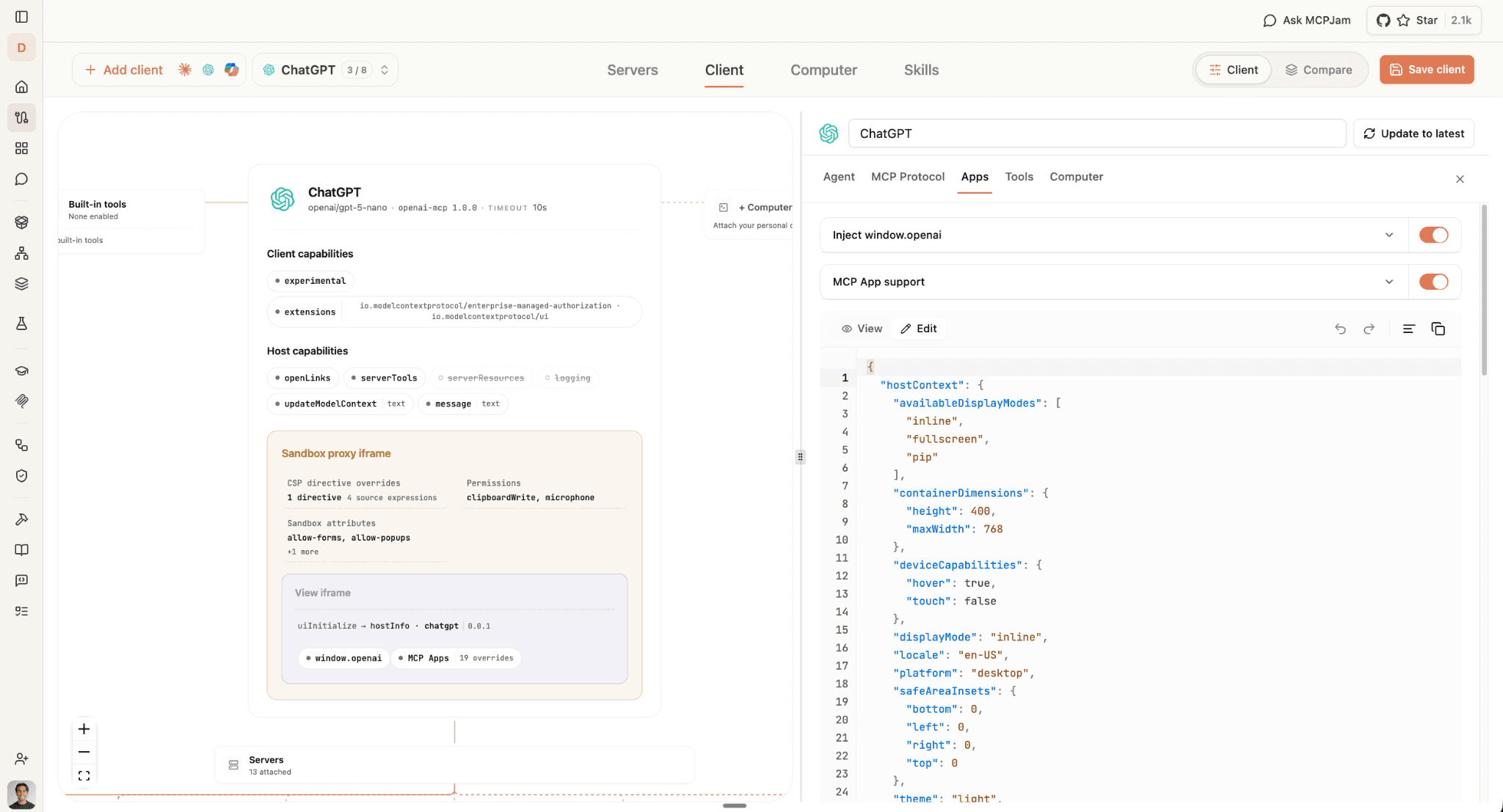
To run test cases, use MCPJam Inspector playground to connect to your server and chat with user prompts against frontier models with the ChatGPT client, even locally.
Swipe to inspect the full diagram →
Swipe to inspect the full diagram →
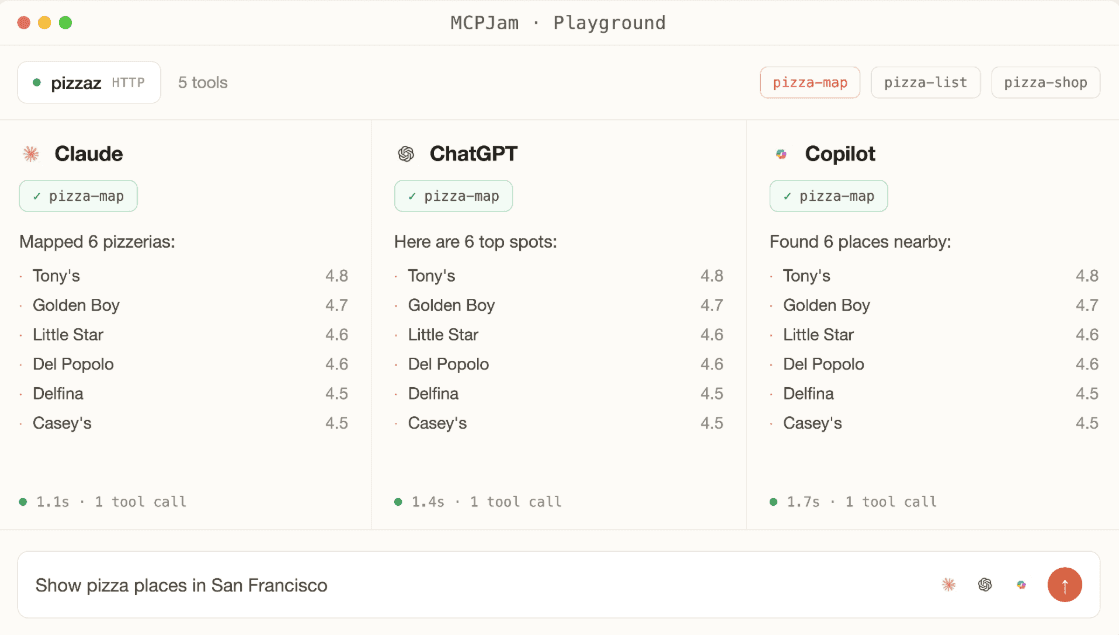
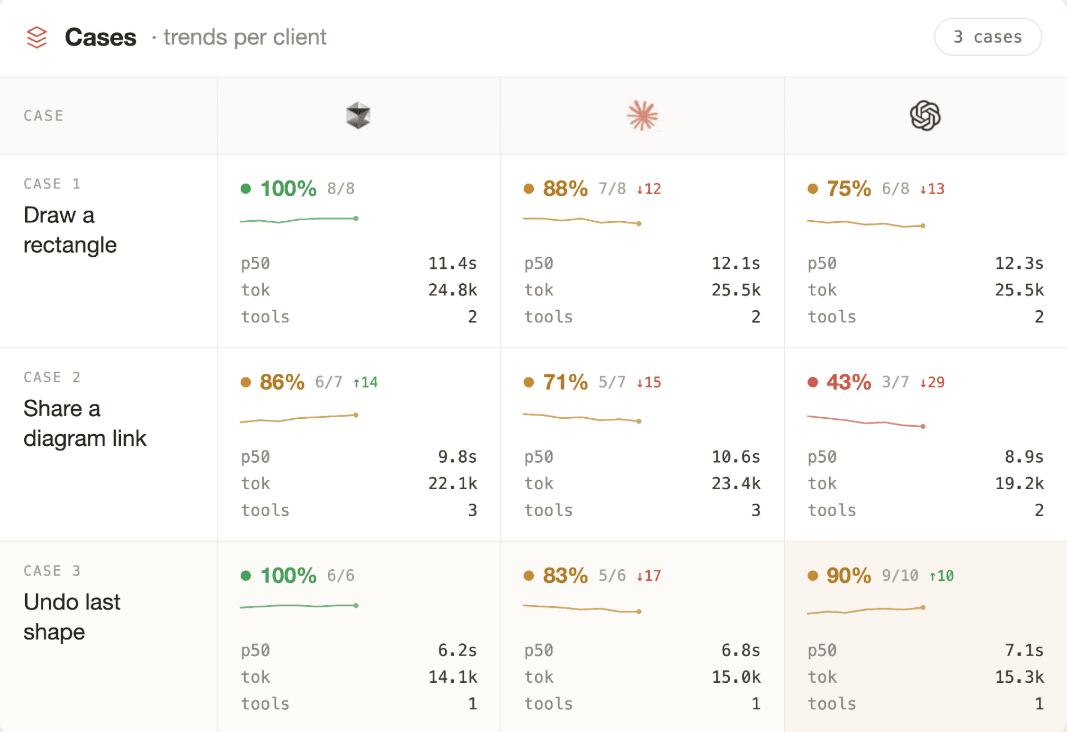
Then, turn these manual prompts into evaluation test cases as you iterate to ensure your MCP server (+ Skill) design is always reliably handling your test cases in the Evaluate tab.
MCPJam evaluation results across clients
Swipe to inspect the full diagram →
Reviewers test the plugin without the internal context your team has, so it’s important you understand the target user personas and prompt patterns and make it clear for them. If authentication is required, the test account needs to work without MFA, SMS verification, email confirmation, or access to a private network. This part takes some preparation, so we’d suggest starting from use cases to inform test cases to use as you design your plugin rather than leaving them until submission day.
Skills
Not every plugin needs a skill. Use one when a workflow depends on repeatable instructions, examples, or bundled resources that guide the model through a task. If the workflow needs live data, authentication, or controlled actions, you will generally need an MCP server instead. OpenAI has a useful guide for deciding what each use case needs.
When a plugin includes skills, each skill needs a clear SKILL.md that explains when it should run and what it should do. Any scripts, references, or assets it depends on also need to be included in the package.
Test how your MCP Server + Skill behaves by connecting your MCP server, uploading your Skill in the Skills tab.
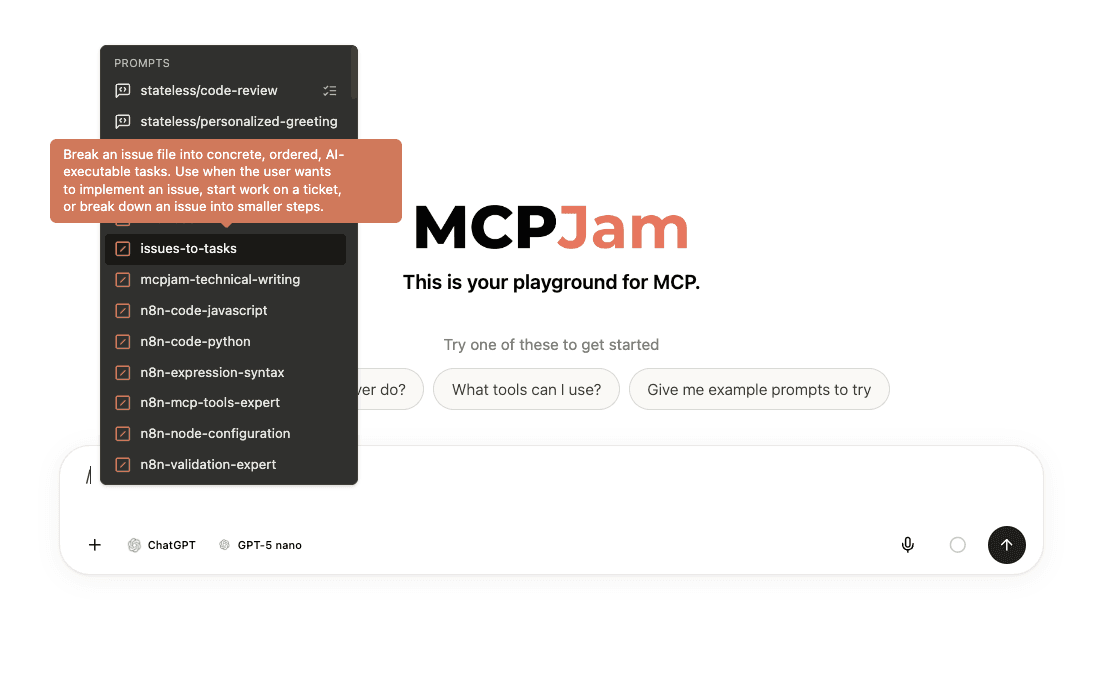
OpenAI scans skills for sensitive information, unnecessary access, and instructions that conflict with expected model behavior. A failed scan can prevent the plugin from being submitted.
Skills can be added to a plugin in two ways: you can upload a skill bundle directly, or, if your plugin includes an MCP server, expose static skills from that server and import them with Scan Tools.
The difference is where the skill comes from. An MCP-imported skill is copied into the plugin submission when you scan the server; it is not loaded live from the server after publication. If you change it, you need to scan again and submit a new plugin version.
Before submitting, review the data returned by your tools and compare it with your privacy policy. Remove authentication secrets, internal debugging information, unnecessary identifiers, and any user data you have not clearly disclosed.
Steps After Approval
Submitting the plugin starts the review, though it doesn’t publish it automatically. Once the plugin is approved, you choose when to make it public from the portal. That gives you control over when the listing appears and when you announce your launch.
Changes made after publication need to be submitted as a new version and reviewed again. Plan for that when deciding which features need to be ready for the first release and which ones can wait.
The main thing OpenAI wants is clarity. Each tool should describe what it actually does, the test cases should work reliably in all kinds of user configurations, and the listing should make it clear who is publishing the plugin and what users are installing.
The latest requirements are available in OpenAI’s plugin packaging guide, submission documentation, and MCP server review requirements.