
How to work with MCP Tasks
In the latest November 2025 MCP spec, the protocol introduced Tasks, a way for MCP servers to run long running tasks and for clients to poll the task status. This means clients can trigger long running operations that run in the background without having to wait for completion.
A real world example use case could be a YouTube MCP server. Videos often take minutes to upload. With the YouTube MCP server, we could trigger a Task that uploads the video in the background. In the meantime, the user can still use the YouTube MCP server to upload another video, or request for the status of the upload.
In this article, we do a technical dive into how Tasks work at the protocol level, and how you can implement this feature in your MCP server.
The negotiation step
Like other features of the protocol, the server and client negotiate their Tasks capabilities during the capabilities negotiation step.
Servers declare their support for Tasks in its capabilities:
{
  "capabilities": {
    "tasks": {
      "list": {},
      "cancel": {},
      "requests": {
        "tools": {
          "call": {}
        }
      }
    }
  }
}
The MCP client returns with similar capabilities. From the exchange, both the server and client should respect each other's capabilities. For example, clients should not attempt to cancel a task if the server doesn't provide the cancel capability.
Client creates a task
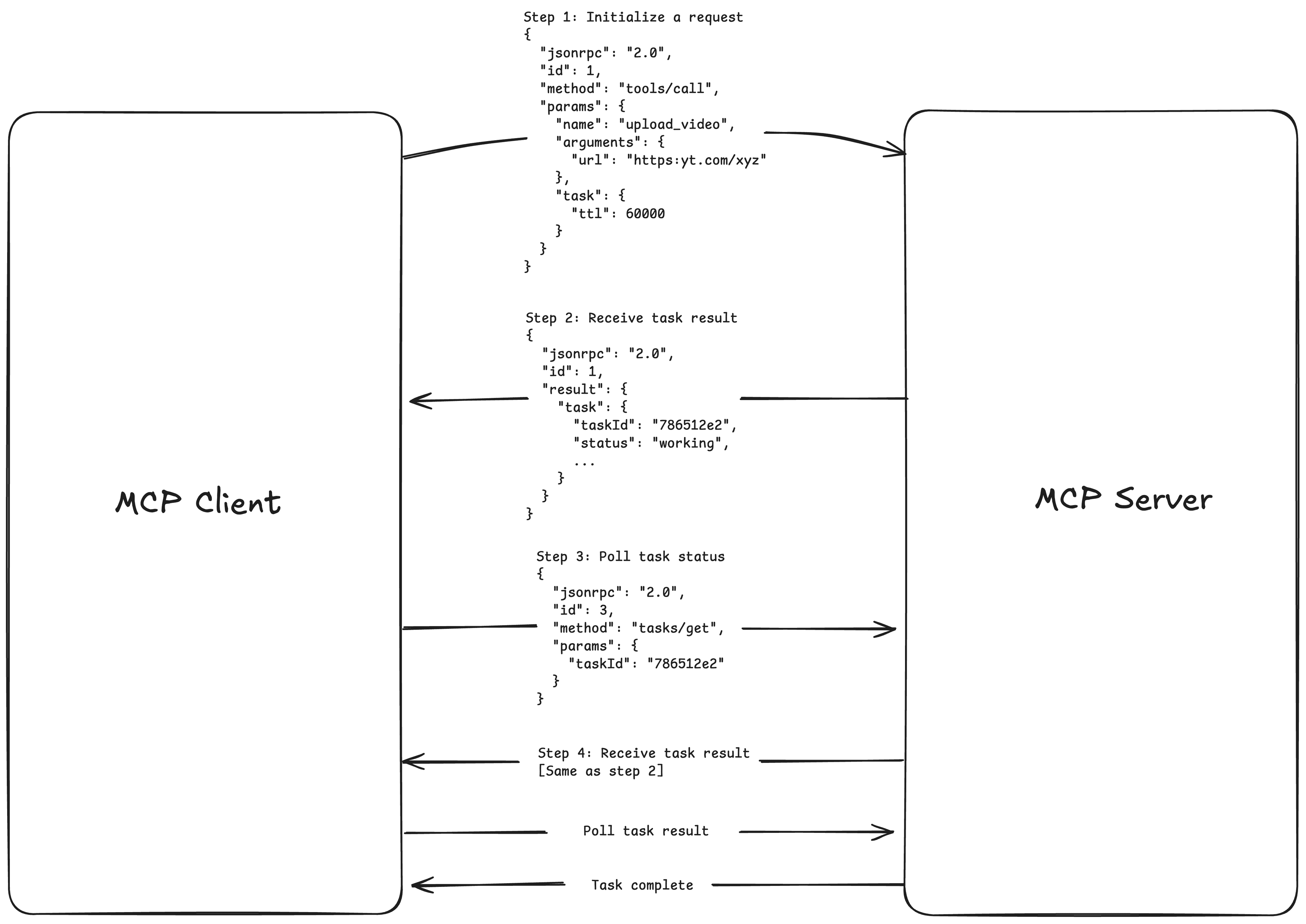
Creating a task via tools all looks like any other tool call JSON-RPC message. To trigger a task, we add a task object in its parameter to indicate a task.
This is what the request would look like to upload a YouTube video. We add a task param with the optional ttl.
{
  "jsonrpc": "2.0",
  "id": 1,
  "method": "tools/call",
  "params": {
    "name": "upload_video",
    "arguments": {
      "directory": "/User/matt/..."
    },
    "task": {
      "ttl": 600000
    }
  }
}
This is the CreateTaskResult object response we could receive from the YouTube MCP server. We receive the ID of the task, which we can use to make future polls for that task.
{
  "jsonrpc": "2.0",
  "id": 1,
  "result": {
    "task": {
      "taskId": "7821512e2-9e2d-44bd-8f29-789f3fdas0fe840",
      "status": "working",
      "statusMessage": "The video is uploading...",
      "createdAt": "2025-11-25T10:30:00Z",
      "lastUpdatedAt": "2025-11-25T10:40:00Z",
      "ttl": 60000,
      "pollInterval": 5000
    }
  }
}
This response from the server must contain a createdAt field and lastUpdatedAt field to measure how long the task has been running. The ttl and pollInterval fields are optional.
ttlor "Time to Live", indicates how long we allow the task to run before we declare it. It is entirely optional and up to interpretation on how the client and server uses TTL. Servers can choose to respect the TTL by deleting the task after passing the time, or they can choose to ignore TTL and continue the process.
Polling (requesting) for updates
Clients can send a poll request to get the status of a running task by sending a task/get message. Polls should respect the pollInterval from the server.
The poll message should also include the task ID:
{
  "jsonrpc": "2.0",
  "id": 3,
  "method": "tasks/get",
  "params": {
    "taskId": "786512e2-9e0d-44bd-8f29-789f320fe840"
  }
}
The response message is the same TaskResultobject that looks like what's in the initiation step above.
{
  "jsonrpc": "2.0",
  "id": 1,
  "result": {
    "task": {
      "taskId": "7821512e2-9e2d-44bd-8f29-789f3fdas0fe840",
      "status": "working",
      "statusMessage": "The video is uploading...",
      "createdAt": "2025-11-25T10:30:00Z",
      "lastUpdatedAt": "2025-11-25T10:40:00Z",
      "ttl": 60000,
      "pollInterval": 5000
    }
  }
}
Getting the task result
Once the task has completed, the client can send a request to fetch the result of the task.
{
  "jsonrpc": "2.0",
  "id": 4,
  "method": "tasks/result",
  "params": {
    "taskId": "786512e2-9e0d-44bd-8f29-789f320fe840"
  }
}
You get the standard tool response along with some metadata. Make sure the server responds with the full io.modelcontextprotocol/related-task metadata to let the client know what task this result was for.
{
  "jsonrpc": "2.0",
  "id": 4,
  "result": {
    "content": [
      {
        "type": "text",
        "text": "Video uploaded successfully. The URL is https:youtube.com/aPo99"
      }
    ],
    "isError": false,
    "_meta": {
      "io.modelcontextprotocol/related-task": {
        "taskId": "786512e2-9e0d-44bd-8f29-789f320fe840"
      }
    }
  }
}
Testing out MCP tasks in MCPJam inspector
The MCPJam inspector provides support to test MCP tasks. You can spin up the MCPJam inspector with the npx command, or the desktop apps.
npx @mcpjam/inspector@latestTo start executing a task, connect to your MCP server and go to the tools tab. MCPJam will automatically detect which tools support MCP tasks. For tools that support tasks, you'll see a TTL option next to the execute option.
Once you've executed a task, you should be redirected to the Tasks tab where you can inspect your task's run. MCPJam automatically polls for the task result every few ms.