
Build your first MCP App (UI)
Teams from MCP-UI, Anthropic, and OpenAI collaborated on a new standard in the spec to bring interactive UI to MCP clients. The project is called MCP Apps, and as of today, it is still in its early stages under the proposal phase (SEP-1865).
MCP Apps brings an exciting opportunity for developers to create apps within ChatGPT, Claude, and many more MCP clients. With these clients' distribution power, this could possibly be the Apple app store moment for LLM chat.
The MCPJam team built a MCP Apps emulator to help get developers started with building MCP Apps. In this tutorial, we break down a real MCP App example with real code examples.
Overview of MCP Apps
If you are familiar with OpenAI Apps SDK, the structure of MCP Apps is nearly identical. The high level of a MCP App:
Tools are exposed to the LLM client via an MCP server. The tools can point to a UI template with the _meta tag. Tools can be used to fetch data to pass to the UI.
"_meta": {
  "ui/resourceUri": "ui://weather-server/dashboard-template"
}
UI is declared as a MCP resource. The MCP resource must have a Uri scheme like ui://weather-dashboard, the same uri passed into the MCP tool _meta. The HTML content of the UI lives with the MCP resource. Content is served via resources/read message.
The UI loads the HTML contents from the MCP resource into a sandboxed iFrame. The UI in the iFrame can talk to the MCP server like call tools and send follow up messages via JSON-RPC.
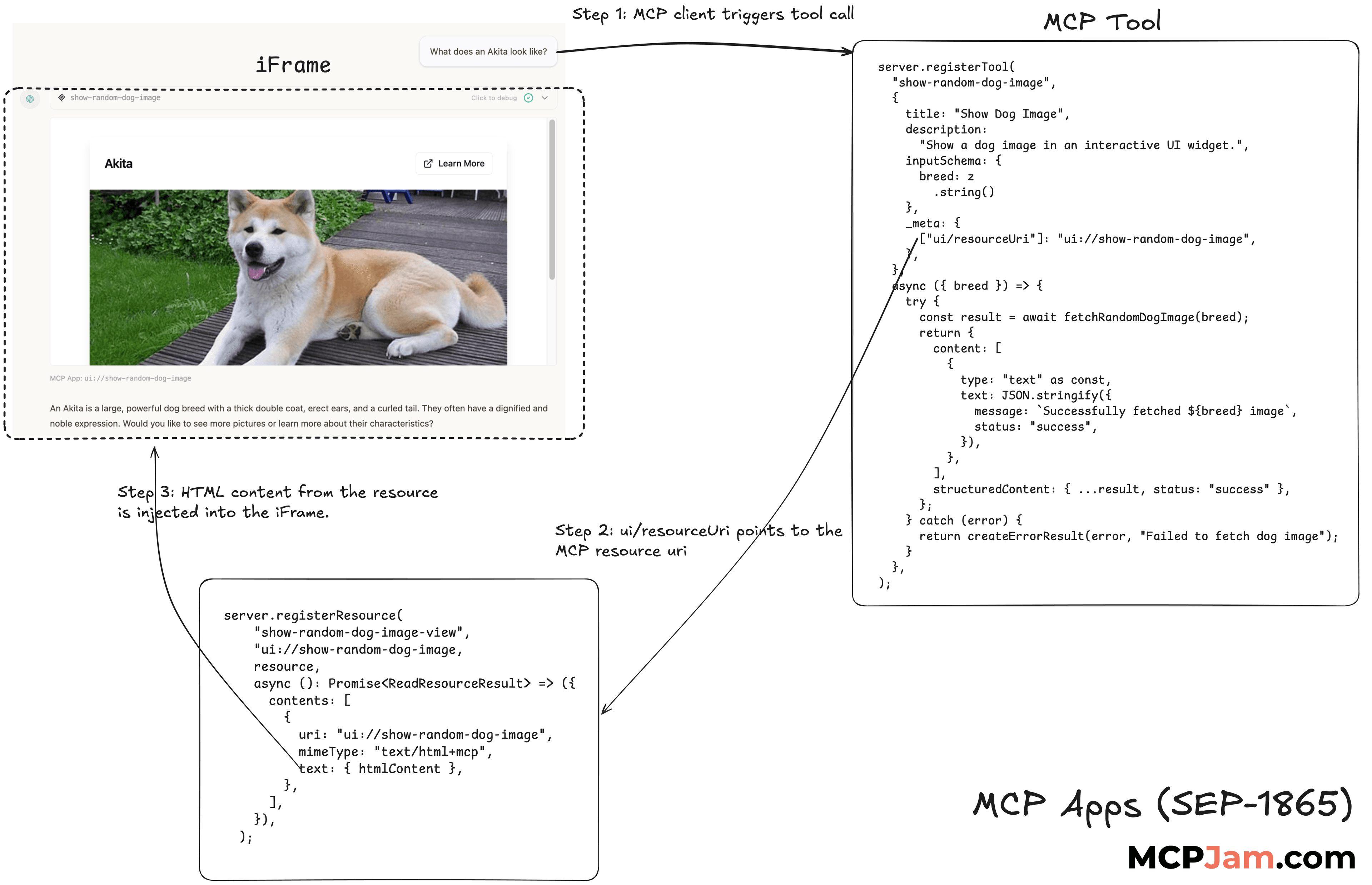
MCP Apps example (Cute Dogs Server)
Let's break down an example MCP apps server we built that fetches images of cute dogs based on breed. Check out this GitHub repo to view the source code and follow along.
Here's the file structure of the project:
cute-dogs-server/
  ├── src/
  │   ├── components/ui/         # Reusable UI primitives (button, badge, alert, card)
  │   ├── all-breeds-view.tsx    # View to list all dog breeds
  │   ├── dog-image-view.tsx     # View to show a dog image by breed
  │   └── styles.css
  ├── all-breeds-view.html       # Static shell for Vite entry
  ├── dog-image-view.html        # Static shell for Vite entry
  ├── server.ts                  # Simple server to serve pages/assets
  ├── package.json               # Scripts/deps
MCP server (server.ts)
The MCP server uses the official MCP Typescript SDK. The MCP server registers the MCP tool and MCP resources for the UI. Let's take a look at the show-random-dog-image MCP tool:
server.registerTool(
  "show-random-dog-image",
  {
    title: "Show Dog Image",
    description:
      "Show a dog image in an interactive UI widget. Do not show the image in the text response. The image will be shown in the UI widget.",
    inputSchema: {
      breed: z
        .string()
        .describe(
          "Optional dog breed (e.g., 'hound', 'retriever'). If not provided, returns a random dog from any breed.",
        ),
    },
    _meta: {
      [RESOURCE_URI_META_KEY]: "ui://show-random-dog-image",
    },
  },
  async ({ breed }) => {
    try {
      const result = await fetchRandomDogImage(breed);
      return {
        content: [
          {
            type: "text" as const,
            text: JSON.stringify({
              message: `Successfully fetched ${breed} image`,
              status: "success",
            }),
          },
        ],
        structuredContent: { ...result, status: "success" },
      };
    } catch (error) {
      return createErrorResult(error, "Failed to fetch dog image");
    }
  },
);
The MCP server _meta must contain a key RESOURCE_URI_META_KEY = "ui/resourceUri". The value of that key must be the uri of the MCP resource that contains the UI HTML.
In the body of the tool, we fetch the image data for the dog breed and return the results. There are two return types for the MCP tool. The content and the structuredContent. content is what's being sent back to the LLM. The structuredContent value is hidden from the LLM, but passed to the UI similar to a React prop.
In the React component section of this article, we'll discuss how we can fetch the data from structuredContent to hydrate the UI.
MCP Resource (server.ts)
The MCP resource contains the HTML content that is loaded into the client's iFrame. The resource is identified by its URI. To register as a MCP Apps resource, you must set the mimeType to text/html+mcp.
export const loadHtml = async (name: string): Promise<string> => {
  const htmlPath = path.join(distDir, `${name}.html`);
  return fs.readFile(htmlPath, "utf-8");
};

server.registerResource(
  "show-random-dog-image-template",
  "ui://show-random-dog-image",
  {
    name: "show-random-dog-image-template",
    uri: "ui://show-random-dog-image",
    title: "Show Dog Image Template",
    description: "A show dog image UI",
    mimeType: "text/html+mcp",
  },
  async (): Promise<ReadResourceResult> => ({
    contents: [
      {
        uri: "ui://show-random-dog-image",
        mimeType: "text/html+mcp",
        text: loadHtml("dog-image-view"),
      },
    ],
  }),
);
We don't cover it in this example server, but the MCP resource is where you also configure your MCP App's _meta, such as configuring the CSP. Check out the full documentation for implementation.
React UI component (all-breeds-view.tsx)
The UI is like any other standard React component. We use the useApp hook from the official MCP Apps SDK that handles the bridge between the UI and the MCP server. useApp has a onAppCreated function that lets us fetch the structuredContent.
The structuredContent contains the image URL that we returned in the tool call. We then use that data to hydrate our UI.
import { useApp } from "@modelcontextprotocol/ext-apps/react";

const APP_INFO: Implementation = {
  name: "Show Dog Image App",
  version: "1.0.0",
};

export function DogImageViewApp() {
  const [imageUrl, setImageUrl] = useState<string>("");

 const { app } = useApp({
    appInfo: APP_INFO,
    capabilities: {},
    onAppCreated: (app) => {
      app.ontoolresult = async (toolResult) => {
        const data = toolResult.structuredContent as {
          message?: string;
          breed?: string;
        };
        if (data.message && data.breed) {
          setImageUrl(data.message);
        }
      };
    },
  });

  return (
    <div className="min-h-screen bg-background p-6 md:p-8">
      ... React UI
    </div>
  );
}
To glue it all together, we created a dog-image-view.html that is a static HTML shell that loads the React file as a JS script. This static HTML shell gets compiled into another HTML script in the dist. Its this compiled HTML that is loaded into the MCP resource to be served.
Test MCP Apps with MCPJam
MCPJam is an open source testing platform for MCP servers, ChatGPT apps, and MCP Apps.
The MCPJam team built the first working client prototype that supports MCP Apps. MCPJam client follows the spec defined in SEP-1865 such as resource handling, tool calling, send follow up message, etc. We hope the client preview will help with accelerating the development of the MCP Apps SDK.
To start up the MCPJam inspector, it's a single npx command:
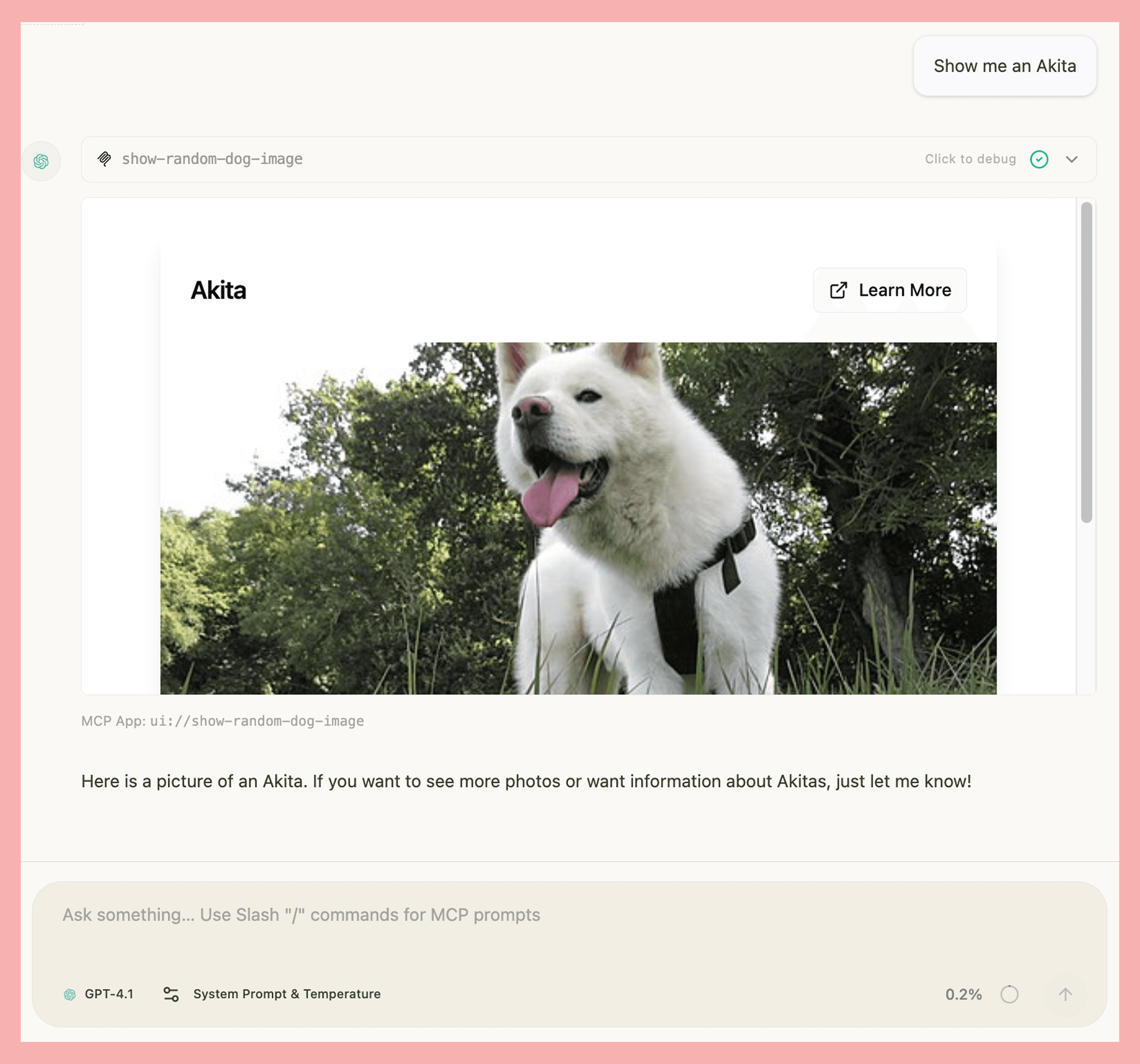
npx @mcpjam/inspector@latestHere's what the example app above looks like in MCPJam:
Subscribe to the blog
We share our learnings with you every week.
What's next
I highly recommend cloning the example repo and playing around with it in the MCPJam inspector. It's the best way to learn how to build an MCP app. Once you are familiar with the structure, try building a server. We'll also be releasing a deep dive into MCP apps in the next article.