Build, Test & Debug Claude MCP Apps Locally
Learn to build, test, and debug Claude MCP Apps locally with MCPJam. Create a React UI, trace tool calls, and fix CSP issues, no tunnel required.
In this guide8 sectionsHide
Building a Claude MCP App can be difficult when you can't see what's happening between your UI, your MCP server, and Claude. Testing the complete experience in claude.ai means exposing your machine through a tunnel and reloading a chat every time you change a line of code.
With MCPJam, you can build and debug the app on your machine without a tunnel:
- Part 1: Build a task board from scratch: an MCP server, three tools, and a React UI.
- Part 2: Test and debug it with MCPJam: rendering, the app bridge, CSP, message tracing, fixed-input tool calls, model testing, a final check in Claude Desktop, and a pre-submission checklist.
This guide is part of a series on building MCP Apps for different clients. If you're also targeting ChatGPT, the ChatGPT tutorial covers the same task board so you can compare the two approaches.
You can find the complete code on GitHub.
How a Claude MCP App fits together
Claude implements the open MCP Apps standard, which gives a connector its own interactive UI. Anthropic calls a connector with that UI an interactive connector. A tool returns data, a ui:// resource serves the HTML, and _meta.ui.resourceUri links the two. Claude renders the UI inline in the conversation or in fullscreen, and the chat composer stays available while the user interacts with it. On web and desktop the UI runs in a sandboxed iframe. On mobile it runs in a native WebView.
Swipe to inspect the full diagram →
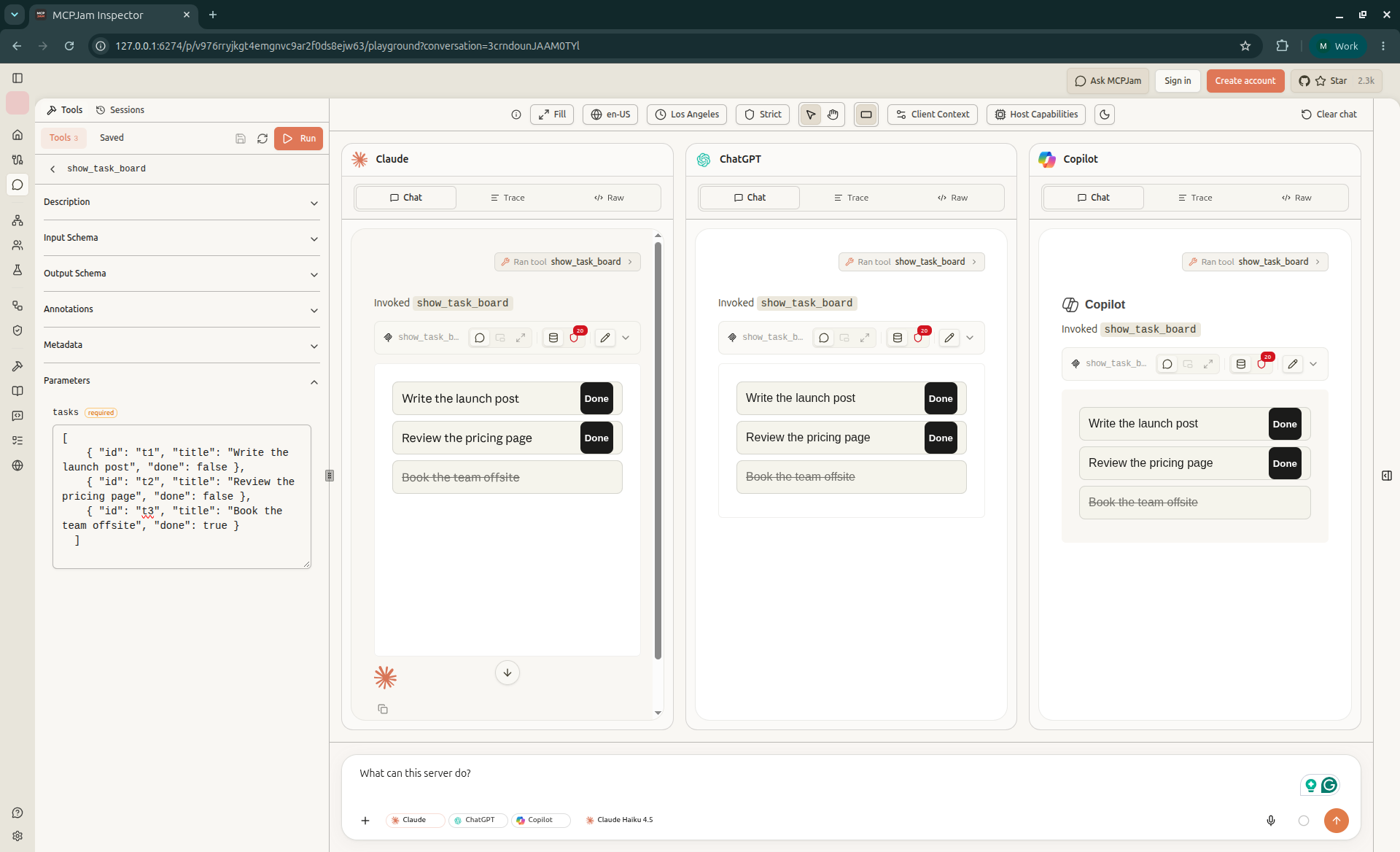
The MCP Apps standard gives your UI a portable foundation across compatible clients. The MCP Apps SDK wraps each protocol message in a helper, so you don't have to write the messages by hand:
Swipe to see all columns →
| Goal | MCP Apps standard | What you write in Claude |
|---|---|---|
| Link a tool to a UI resource | _meta.ui.resourceUri | registerAppTool() |
| Receive tool input | ui/initialize + ui/notifications/tool-input | app.ontoolinput |
| Receive tool results | ui/notifications/tool-result | app.ontoolresult |
| Call a tool from the UI | tools/call | app.callServerTool() |
| Send a follow-up message | ui/message | app.sendMessage() |
| Change display mode | ui/request-display-mode | app.requestDisplayMode() |
Our task board's UI talks to the client only through SDK helpers, so the same UI bundle can also render in other clients that support MCP Apps.
What "no tunnel required" means here
You can add your server to Claude as a custom connector on any plan: Free (one custom connector), Pro, Max, Team, or Enterprise. On Team and Enterprise, an organization owner adds it first. Owners on those plans can also turn off the tool calls that render a connector's interactive UI, such as show_task_board, under Organization settings > Connectors. The connector stays on, and its text-based tools keep working.
The obstacle to a custom connector is networking: claude.ai connects from Anthropic's infrastructure, so it can't reach a local server. Building, rendering, and debugging the app all run locally in MCPJam without a Claude account. Testing how a real model uses your tools needs a model, which MCPJam provides or lets you connect with your own API credentials. The optional final check uses Claude Desktop, which can also reach a server running locally.
So you can build, render, and debug the whole app without a tunnel or a public URL.
Part 1: Build the app
You'll build the server and its three tools first, then the React UI, and serve both over HTTP.
Before you start
Make sure you have:
- Node.js 22+ (
node --version). Both the app and MCPJam run on it. - npm, which ships with Node.
If you'd rather have a coding agent scaffold the project, the MCP Apps repo ships agent skills. In Claude Code, install them with /plugin marketplace add modelcontextprotocol/ext-apps, then /plugin install mcp-apps@mcp-apps. This guide builds everything by hand so you can see each moving part.
1. Set up the project
Keep the server and the UI in separate folders:
task-board
├── server
│   ├── package.json
│   └── src
│       ├── index.ts
│       └── server.ts
└── web
    ├── package.json
    └── src
        └── component.tsx
Install dependencies for each. Both folders use the MCP Apps SDK: the server to register the UI resource, and the UI to talk to Claude.
Scroll code horizontally →
mkdir -p task-board/server/src task-board/web/src

cd task-board/server
npm init -y
npm pkg set type=module
npm install @modelcontextprotocol/server @modelcontextprotocol/node @modelcontextprotocol/ext-apps zod express
npm install -D typescript tsx @types/express @types/node

cd ../web
npm init -y
npm install react@^19 react-dom@^19 @modelcontextprotocol/ext-apps
npm install -D typescript esbuild @types/react@^19 @types/react-dom@^19
The official MCP TypeScript SDK v2 splits into scoped packages: @modelcontextprotocol/server is the server half, and @modelcontextprotocol/node adapts it to Node frameworks like Express. @modelcontextprotocol/ext-apps registers the UI resource on the server and provides the App class and the useApp React hook in the UI. Version 2.x of ext-apps expects the split packages at ^2.0.0.
Once installation finishes, you should have two node_modules folders and two package.json files. If npm pkg set errors, your npm is too old. Upgrade Node and try again.
Add a server/tsconfig.json, and a "typecheck": "tsc --noEmit" script in server/package.json, so you can catch package mismatches:
Scroll code horizontally →
{
  "compilerOptions": {
    "target": "es2022",
    "module": "nodenext",
    "moduleResolution": "nodenext",
    "strict": true,
    "noEmit": true,
    "skipLibCheck": false,
    "forceConsistentCasingInFileNames": true,
    "types": ["node"]
  },
  "include": ["src/**/*.ts"]
}
2. Create the server and its data
Create server/src/server.ts. Our server will expose three tools, which you'll register in step 3:
list_tasksreads tasks.complete_taskmarks one as done.show_task_boardrenders the UI.
This file holds the in-memory tasks fixture (t1, t2, t3) used throughout this article, and initializes the McpServer:
Scroll code horizontally →
// server/src/server.ts
import { McpServer } from "@modelcontextprotocol/server";
import {
  registerAppResource,
  RESOURCE_MIME_TYPE,
} from "@modelcontextprotocol/ext-apps/server";
import { readFileSync } from "node:fs";
import { z } from "zod";

const WIDGET_URI = "ui://task-board/v1.html";

const TaskSchema = z.object({
  id: z.string(),
  title: z.string(),
  done: z.boolean(),
});
const TaskListSchema = z.object({ tasks: z.array(TaskSchema) });

// In-memory data for the tutorial. Use a real data store in production.
const tasks = [
  { id: "t1", title: "Write the launch post", done: false },
  { id: "t2", title: "Review the pricing page", done: false },
  { id: "t3", title: "Book the team offsite", done: true },
];

export function createServer() {
  const server = new McpServer(
    { name: "task-board", version: "1.0.0" },
    {
      // These instructions reach the model alongside your tool descriptions.
      instructions:
        "Call list_tasks to get tasks. To show tasks visually, call list_tasks first, then pass its tasks to show_task_board.",
    }
  );

  // The three tools are registered here (step 3).

  registerWidget(server);
  return server;
}
3. Define the tools
Keep data tools separate from render tools. A data tool returns data and has no UI. A render tool points at the UI resource. The model calls list_tasks to get data and show_task_board only when the user should see the board, so a data call never re-renders the iframe. The UI can also call complete_task directly, without involving the model.
Here's list_tasks, registered inside createServer() from step 2:
Scroll code horizontally →
// Data tool: read-only.
server.registerTool(
  "list_tasks",
  {
    title: "List tasks",
    description:
      "Use this when the user wants to find or review their tasks. Returns tasks with id, title, and done status.",
    inputSchema: z.object({ status: z.enum(["open", "done"]).optional() }),
    outputSchema: TaskListSchema,
    annotations: {
      readOnlyHint: true,
      destructiveHint: false,
      openWorldHint: false,
    },
  },
  async ({ status }) => {
    const result = tasks.filter((t) =>
      status === undefined ? true : status === "done" ? t.done : !t.done
    );
    return {
      structuredContent: { tasks: result },
      content: [{ type: "text", text: JSON.stringify({ tasks: result }) }],
    };
  }
);
The description helps the model understand what the tool does and when to call it. The annotations describe its behavior. Here, readOnlyHint is true because this tool can't change anything. structuredContent holds the task data the UI renders. Claude's model reads only content, so the handler puts the same data there as JSON text, which the MCP spec recommends for any tool that returns structured content. With only a summary such as "Found 3 tasks." in content, the model has no IDs or titles to pass to show_task_board, and the board never renders.
Every tool here sets a title, readOnlyHint, and destructiveHint. Anthropic's pre-submission checklist requires a title and the applicable hint for directory connectors, because Claude uses them to decide which calls need the user's confirmation.
complete_task follows the same pattern with readOnlyHint: false. It returns isError: true when the ID doesn't exist, and the full task list when it succeeds:
Scroll code horizontally →
// Data tool: changes state, called by the model or from the UI.
server.registerTool(
  "complete_task",
  {
    title: "Complete task",
    description: "Use this when the user wants to mark a task as done.",
    inputSchema: z.object({ taskId: z.string() }),
    outputSchema: TaskListSchema,
    annotations: {
      readOnlyHint: false,
      destructiveHint: false,
      openWorldHint: false,
    },
  },
  async ({ taskId }) => {
    const task = tasks.find((t) => t.id === taskId);
    if (!task) {
      return {
        isError: true,
        content: [{ type: "text", text: `No task found with id ${taskId}.` }],
      };
    }
    task.done = true;
    return {
      structuredContent: { tasks },
      content: [
        { type: "text", text: `Marked "${task.title}" as done.` },
        { type: "text", text: JSON.stringify({ tasks }) },
      ],
    };
  }
);
To hide a tool from the model so that only the UI can call it, set _meta.ui.visibility to ["app"] on that tool. We keep the default here so the model can complete tasks too.
The render tool is the only one that points at the UI. Register it inside createServer() too:
Scroll code horizontally →
// Render tool: the only one that points at the UI.
server.registerTool(
  "show_task_board",
  {
    title: "Show task board",
    description:
      "Render the task board UI. Always call list_tasks first, then pass its tasks to this tool.",
    inputSchema: TaskListSchema,
    outputSchema: TaskListSchema,
    annotations: {
      readOnlyHint: true,
      destructiveHint: false,
      openWorldHint: false,
    },
    _meta: { ui: { resourceUri: WIDGET_URI } },
  },
  async ({ tasks }) => ({
    structuredContent: { tasks },
    content: [{ type: "text", text: `Showing ${tasks.length} tasks.` }],
  })
);
The description tells the model to call list_tasks first, matching the server instructions from step 2. Repeating the order in both places helps the model use the tools correctly. In step 7, we'll see how to confirm the client actually received them.
The SDK also offers registerAppTool(), a drop-in for registerTool() that writes the UI metadata for every supported client. We set the standard _meta.ui.resourceUri key directly to keep the example explicit.
4. Build the UI
The React component in web/src/component.tsx does three things:
- It subscribes to tool results with
app.ontoolresultand re-renders when the client pushes new tool output. - It calls
complete_taskthroughapp.callServerTool()when you click Done. - It keeps the selected row in React state.
The useApp hook from the MCP Apps SDK creates the App instance and runs the ui/initialize handshake with the client, so you don't write any postMessage code yourself. Register your handlers in onAppCreated, which runs before the connection opens, so the first tool input and result aren't missed. The excerpt below shows the connection and the Done handler. The complete component, including the markup, is in the repo.
Scroll code horizontally →
// web/src/component.tsx
import { useState } from "react";
import { createRoot } from "react-dom/client";
import { useApp } from "@modelcontextprotocol/ext-apps/react";

type Task = { id: string; title: string; done: boolean };
type TaskList = { tasks: Task[] };

function TaskBoard() {
  const [tasks, setTasks] = useState<Task[] | null>(null); // null = still loading
  const [selectedId, setSelectedId] = useState<string | null>(null);
  const [error, setError] = useState<string | null>(null);

  const { app, error: connectError } = useApp({
    appInfo: { name: "Task Board", version: "1.0.0" },
    capabilities: {},
    onAppCreated: (app) => {
      // Register handlers here, before the app connects, so the first tool result isn't missed.
      app.ontoolresult = (result) => {
        const list = result.structuredContent as TaskList | undefined;
        if (list?.tasks) setTasks(list.tasks);
      };
    },
  });

  // ...complete(), loading state, and markup follow
}
Clicking Done calls the server and renders whatever comes back:
Scroll code horizontally →
async function complete(id: string) {
  if (!app) return;
  try {
    const result = await app.callServerTool({
      name: "complete_task",
      arguments: { taskId: id },
    });
    if (result.isError) throw new Error("Tool returned an error");
    setTasks((result.structuredContent as TaskList).tasks);
    setError(null);
  } catch {
    setError("Couldn't update that task. Please try again.");
  }
}
The server is the source of truth for task data. Instead of changing its local task list, the component renders the data returned by the server. This keeps the UI in sync with the backing store.
A few Claude-specific details shape the rest of the component:
- The UI must connect before anything renders. The most common MCP Apps problem is a tool call that appears in the chat with no UI under it. The usual cause is a UI that never connected to the client, so
ontoolresultnever fires.useAppconnects for you. Without React, callawait app.connect()after registering your handlers. - Style variables are CSS custom properties that Claude passes into your UI, such as
--color-background-secondary,--color-text-primary, and--font-sans. They switch automatically between light and dark mode, so the component uses them instead of fixed colors, as Claude's design guidelines recommend. Keep the UI's own background transparent so it blends into the conversation. - Inline cards are small by design. An inline card is the compact view Claude shows in the conversation. Claude's guidelines limit one to about two actions and four or five data points, with no nested scrolling, menus, or popovers. Our three rows fit. For a longer list, add your own fullscreen button that calls
app.requestDisplayMode(). - Tap targets and safe areas. Tap targets are at least 44 by 44 points. The safe area is the part of the UI that the chat input and navigation bar don't cover. Claude reports it in
hostContext.safeAreaInsets, so keep controls away from the edges. - Loading state. Until the first tool result arrives, the component shows skeleton rows that match the final layout, which the guidelines prefer over spinners.
The selected row lives in React state, so it resets if Claude renders the board again. If the model needs to know what the user selected, send it through the MCP Apps bridge, the message channel between your UI and Claude, rather than keeping it only in the UI. If Claude may call show_task_board several times in one conversation, see Claude's guide to superseding older instances, which keeps only the newest copy of the UI interactive.
For the full lifecycle, read the MCP Apps quickstart.
5. Bundle and register the UI
Add a build script to web/package.json:
Scroll code horizontally →
{
  "scripts": {
    "build": "esbuild src/component.tsx --bundle --format=esm --jsx=automatic --minify --outfile=dist/component.js"
  }
}
Keep --minify. Without it, the bundle includes React's unminified development build. In our testing, some clients failed to mount a resource that large, and showed a blank area or raw JavaScript instead of the UI. If you prefer Vite, the MCP Apps repo's React example bundles everything into one HTML file with vite-plugin-singlefile.
From task-board/web, run npm run build. Then register the bundle as a resource in server/src/server.ts, using WIDGET_URI and the imports from step 2:
Scroll code horizontally →
function registerWidget(server: McpServer) {
  const component = readFileSync(
    new URL("../../web/dist/component.js", import.meta.url),
    "utf8"
  );

  registerAppResource(server, "task-board", WIDGET_URI, {}, async () => ({
    contents: [
      {
        uri: WIDGET_URI,
        mimeType: RESOURCE_MIME_TYPE,
        text: `<div id="root"></div><script type="module">${component}</script>`,
        _meta: {
          ui: {
            prefersBorder: true,
            // This widget makes no external requests, so every list is empty.
            // Claude blocks all external origins by default.
            csp: { connectDomains: [], resourceDomains: [], baseUriDomains: [] },
          },
        },
      },
    ],
  }));
}
The server inlines the bundle into the HTML it serves, so the UI stays a single self-contained resource. prefersBorder: true asks Claude to draw a border around the card. If you leave it unset, Claude renders the UI borderless on web and bordered on mobile, so set it explicitly when the look matters.
Clients cache the UI resource by its URI, so it doubles as a cache key. When you ship a breaking change to the component, bump it (v1.html → v2.html), or clients will keep serving the old bundle.
6. Serve it over HTTP
Claude connects to remote servers over Streamable HTTP. You can choose the endpoint, but /mcp is the common convention. In server/src/index.ts, createMcpHandler builds a fresh server per request, so the endpoint stays stateless without any transport wiring of your own:
Scroll code horizontally →
// server/src/index.ts
import express from "express";
import { createMcpHandler } from "@modelcontextprotocol/server";
import {
  toNodeHandler,
  localhostHostValidation,
  localhostOriginValidation,
} from "@modelcontextprotocol/node";
import { createServer } from "./server.js";

// A fresh server per request keeps the endpoint stateless. One factory serves
// every supported protocol revision, so older clients keep working.
const handler = createMcpHandler(() => createServer(), {
  onerror: (error) => console.error(error),
});

// DNS rebinding protection: only answer requests whose Host and Origin headers
// point at localhost. Allow your real domain instead when you deploy.
const checkHost = localhostHostValidation();
const checkOrigin = localhostOriginValidation();

const app = express();

// No express.json() here: toNodeHandler reads the request stream itself.
app.post(
  "/mcp",
  (req, res, next) => {
    if (!checkHost(req, res) || !checkOrigin(req, res)) return;
    next();
  },
  toNodeHandler(handler)
);

app.listen(3000, () => {
  console.log("Task board MCP server: http://127.0.0.1:3000/mcp");
});
createMcpHandler returns a fetch-shaped handler that resolves to a web Response, which Express can't consume directly, so toNodeHandler adapts it and handles write backpressure on streamed SSE responses for you.
There's no express.json() in this file, and that's deliberate. toNodeHandler reads the request stream itself, so a body parser in front of it would consume the body first and leave the handler with nothing.
The two validation guards are DNS rebinding protection. A local endpoint should only answer requests whose Host and Origin headers point to localhost. Swap them for your own domain when you deploy.
Add a start script to server/package.json so the command doesn't depend on your working directory:
{
  "scripts": {
    "start": "tsx src/index.ts"
  }
}
From task-board/server, run npm start.
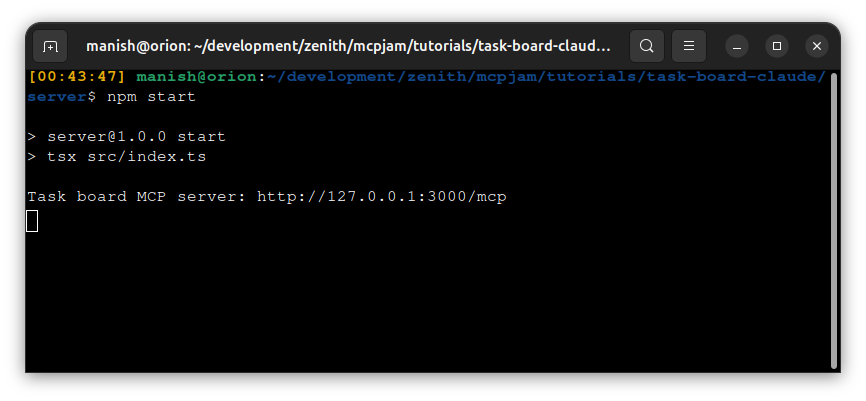
You should see Task board MCP server: http://127.0.0.1:3000/mcp in the terminal. claude.ai can't reach your local server, so testing there would need a public tunnel. In Part 2, MCPJam connects to the server directly, and step 13 checks it in Claude Desktop without a tunnel.
Part 2: Test and debug with MCPJam
MCPJam Inspector is an open-source dev tool for MCP servers and MCP Apps. It renders your UI the way a real client would, lets you preview it with Claude's styling in light and dark mode, and shows the JSON-RPC traffic that's normally hidden.
You'll start by calling the tools directly, without a model. Then you'll check which tools a model picks, and finish with a check in Claude Desktop.
7. Launch MCPJam and connect
Leave the server running. In a new terminal, from anywhere:
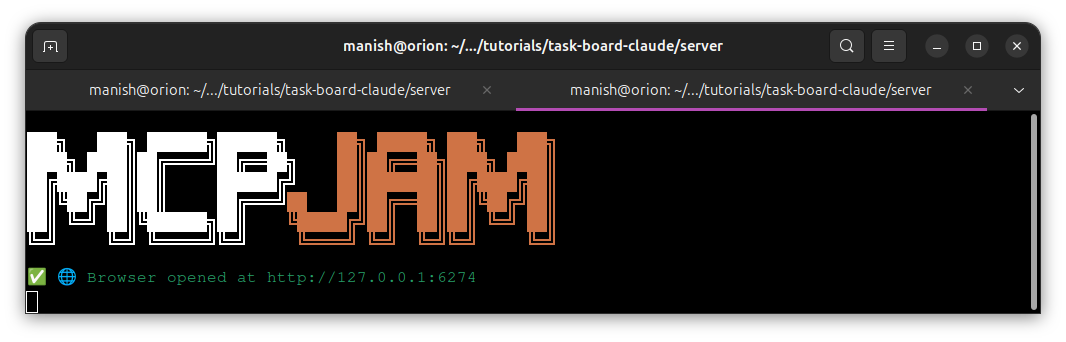
npx @mcpjam/inspector@latestMCPJam requires Node.js 22+. If you'd rather not use the terminal, install the desktop app for macOS or Windows, or run MCPJam from Docker.
In the Servers tab, add an HTTP server at http://127.0.0.1:3000/mcp.
Swipe to inspect the full diagram →
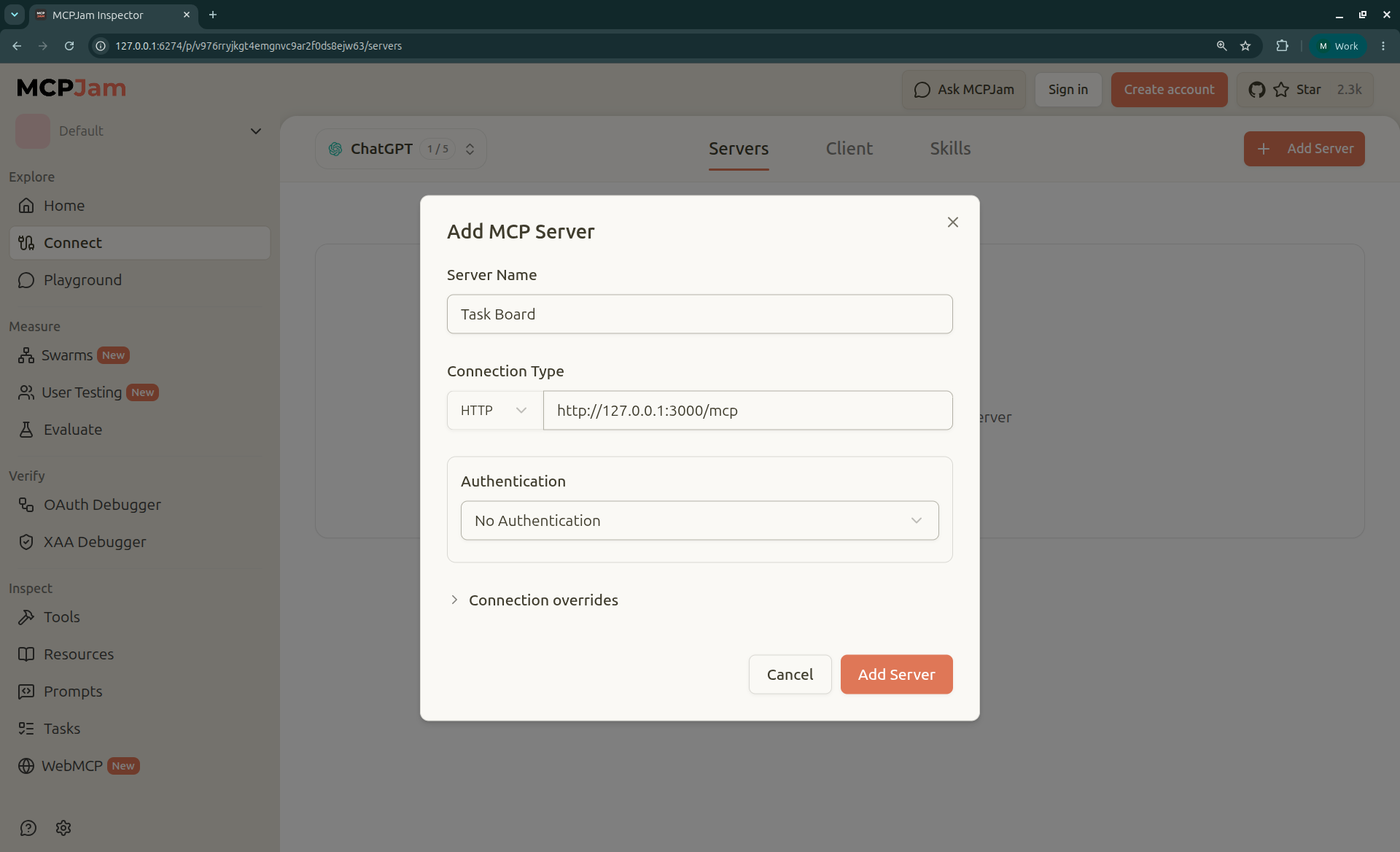
You should see three things in the server info view:
- The server initialized.
- Your
instructionsfrom step 2, shown verbatim. - All three tools listed with the schemas and annotations you wrote.
Swipe to inspect the full diagram →
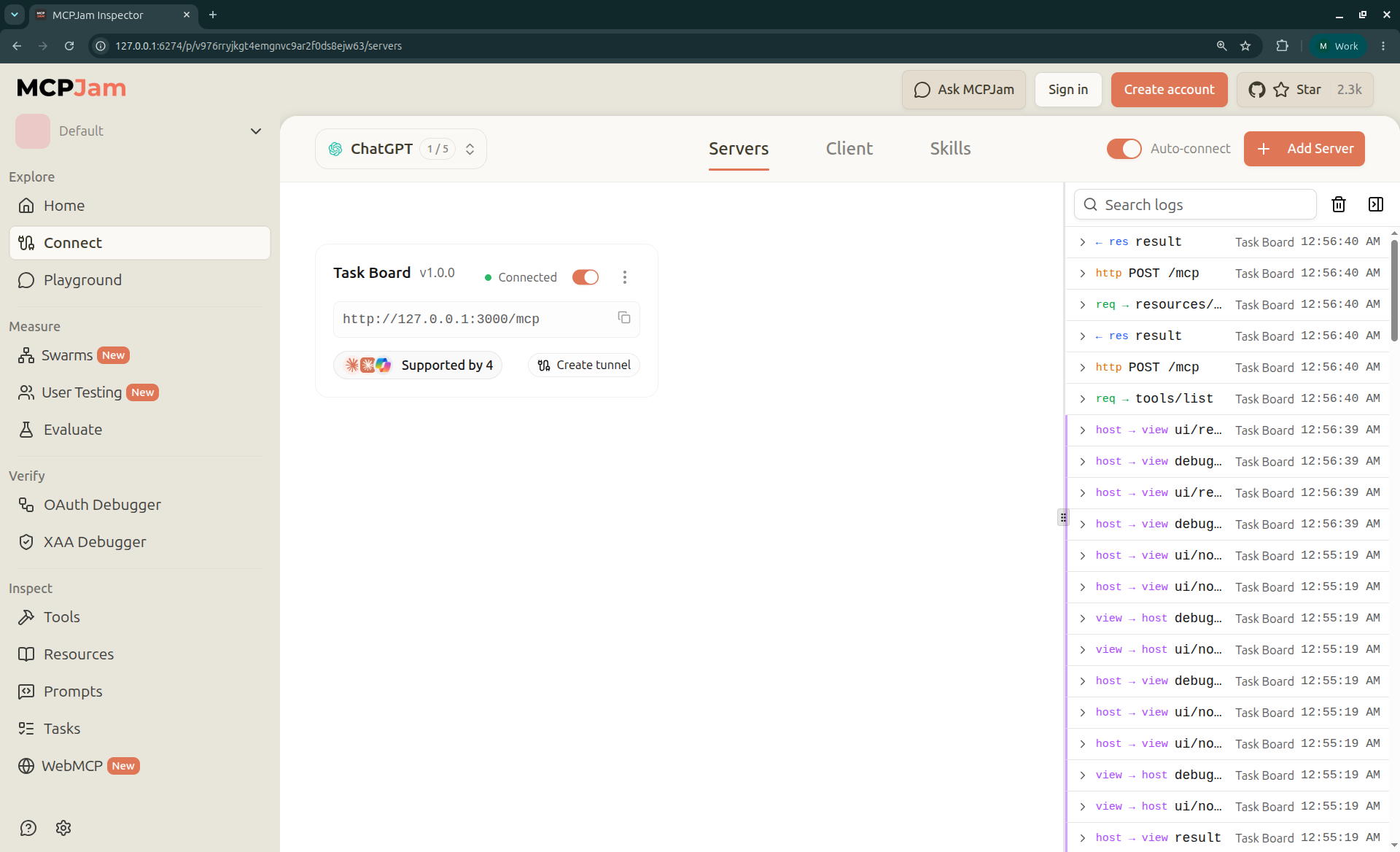
If you don't, a connection error almost always means the server isn't running or is on a different port. Missing tools mean their registerTool calls never ran, so check createServer().
8. Render the UI
Go to Playground, open the Tools tab, and invoke show_task_board manually. The tool's inputSchema is { tasks: z.array(TaskSchema) }, so the input is an object with a tasks key, not a bare array:
Scroll code horizontally →
{
  "tasks": [
    { "id": "t1", "title": "Write the launch post", "done": false },
    { "id": "t2", "title": "Review the pricing page", "done": false },
    { "id": "t3", "title": "Book the team offsite", "done": true }
  ]
}
You should see the board render immediately in the widget emulator. Start with manual calls rather than chat, since that takes the model out of the picture while you check the UI. Each tool result also has panels where you can inspect the raw input, output, and errors.
Swipe to inspect the full diagram →
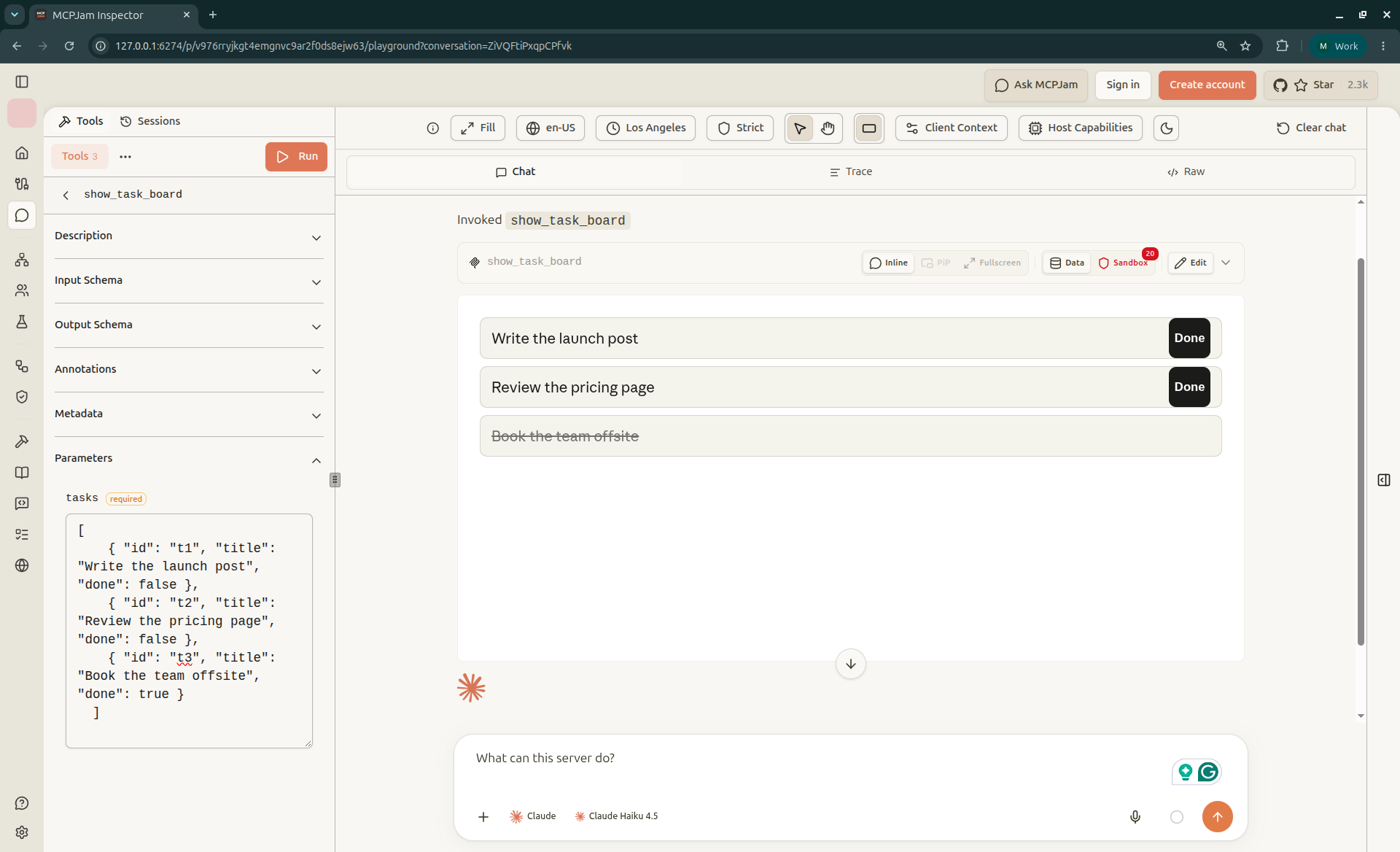
Next, switch the emulator to Claude styling and toggle between light and dark mode. Because the board uses Claude's style variables, its colors should follow the theme with no code changes. Then pick the mobile device size and confirm that the rows stay full width and the buttons stay easy to tap.
If nothing shows up, check these in order:
- Does the tool's
resourceUriexactly match the registered URI? - Is the MIME type
text/html;profile=mcp-app? - Does
web/dist/component.jsexist? The server rereads it on every request, so a rebuild takes effect without a restart. - Did the UI connect to the client? A tool call that succeeds with nothing rendered usually means
useApp(orapp.connect()) never ran, or the root element has zero height. - What do the error panel and your browser's DevTools console say?
9. Interact with the UI and watch the messages
Click Done on "Write the launch post", then switch to the Trace view and select the complete_task request row. MCPJam shows the JSON-RPC messages between the client, your UI, and your server, so you can follow the click end to end:
- The UI sends
tools/callforcomplete_task. - The request reaches your server.
- The server responds with the updated tasks.
- The task gets a strikethrough.
Earlier in the trace, you should also see the handshake: ui/initialize when the UI connects, then ui/notifications/tool-input and ui/notifications/tool-result when the client delivers the tool call.
If something breaks, the first missing step tells you where to look:
- No
ui/initializein the trace: the app never connected. CheckuseApporapp.connect(). - No
tools/callin the trace: check whether the click handler is firing. - The call appears, but the server never sees it: check the tool name and arguments.
- The server answers but the UI doesn't update: check how the UI handles the response.
Next, click a task to select it. The border highlight is React state, so it lasts until Claude renders the board again. That's expected. If a selection must survive, keep it on the server or send it to the model.
10. Check your CSP
A Content Security Policy (CSP) controls which domains your embedded UI can connect to or load resources from. Claude blocks every external origin by default, and your UI can only reach the domains it declares in _meta.ui.csp:
connectDomainscovers API calls.resourceDomainscovers scripts, styles, fonts, and images.baseUriDomainscovers the document's base URI.frameDomainscovers nested iframes. Claude currently restricts it pending security review, so don't rely on it.
Our board makes no external requests, so its lists are empty. In larger apps, common issues include:
- an image bucket or API host you forgot to list,
- a script loaded at runtime instead of bundled,
- a font CDN. Claude already provides Anthropic Sans through the
--font-sansstyle variable, so you rarely need your own.
MCPJam's CSP testing shows what gets blocked. In the host context toolbar, set CSP mode to Strict (the default is Permissive), and a badge counts the blocked requests. Declare only the domains you use, since a policy broader than your UI needs is harder to justify in review.
If your UI runs its own OAuth flow, it needs a stable sandbox origin, which you opt into with _meta.ui.domain. For Claude, the value must be {hash}.claudemcpcontent.com, where {hash} is the first 32 hex characters of the SHA-256 of your full connector URL, including the scheme, path, and any trailing slash:
Scroll code horizontally →
node -e 'const u = "https://example.com/mcp"; console.log(require("crypto").createHash("sha256").update(u).digest("hex").slice(0,32) + ".claudemcpcontent.com")'This needs a remote connector URL to hash, so it isn't available for local stdio servers. When the value doesn't match, Claude shows an Invalid ui.domain format or ui.domain mismatch error instead of your UI.
11. Run fixed-input tool calls
Chat-driven testing is nondeterministic, so the same prompt can produce different arguments across runs. With fixed-input calls, you invoke each tool directly with arguments you choose. You can also pass deliberately invalid inputs to test error handling. Anthropic's checklist asks for actionable error messages on invalid input, so cover edge cases, missing IDs, and empty results.
These expectations assume the three-task fixture from step 2. Tasks live in memory, so the click in step 9 already marked t1 done. Restart the server first to reset them:
Swipe to see all columns →
| Tool | Input | Expected |
|---|---|---|
list_tasks | {} | All three tasks |
list_tasks | { "status": "done" } | Only "Book the team offsite" |
list_tasks | { "status": "archived" } | Schema validation error |
complete_task | { "taskId": "t2" } | Updated list with t2 done |
complete_task | { "taskId": "nope" } | isError: true with a clear message |
complete_task | {} | Schema validation error |
show_task_board | { "tasks": [] } | "Showing 0 tasks." |
Compare each output against your declared schema.
Add one more case for Claude: keep tool results small. When a result is larger than roughly 150,000 characters and Claude's code execution sandbox is active, Claude writes the result to a file instead of passing it inline. Your UI receives a pointer to the file instead of the data, so it never renders. Paginate large results, or return identifiers and let the UI fetch details with app.callServerTool().
If a test catches a bug, replay the same call with mcpjam tools call from the MCPJam CLI, so you can run the case automatically in future tests.
12. Test how the model uses your tools
Steps 8 through 11 verify that your tools work. This step verifies that a model reading your descriptions picks the right tool at the right time. In Playground, choose a Claude model and try a few prompts:
- "Show me my open tasks" should call
list_tasks, thenshow_task_board. - "What's a good productivity method?" shouldn't call anything.
If the model skips list_tasks or fires tools when it shouldn't, look at your tool descriptions, server instructions, and parameter names before touching your handlers. Then run the same prompts against another model to see whether your descriptions hold up across models.
13. Confirm it in Claude Desktop (Optional)
Claude Desktop can reach your local server through a local proxy, so you don't need a tunnel or a public URL.
Claude Desktop can also install local MCP servers as Desktop Extensions, single-click .mcpb packages that replace the manual JSON config. A Desktop Extension is a way to package and distribute a server. It's separate from MCP Apps, which add interactive UI to a server's tools. For this local test, the mcp-remote config below is enough.
In Claude Desktop, open Settings > Developer, click Edit Config, and add the server with mcp-remote, the proxy Anthropic suggests for testing a remote MCP App locally:
Scroll code horizontally →
{
  "mcpServers": {
    "task-board": {
      "command": "npx",
      "args": ["-y", "mcp-remote", "http://127.0.0.1:3000/mcp"]
    }
  }
}
If the server fails to start with spawn npx ENOENT, Claude Desktop can't find Node. This usually happens when Node is installed through a version manager like nvm, because Claude Desktop doesn't load your shell profile. Run which npx in a terminal, then use that absolute path as command and add its folder to PATH:
Scroll code horizontally →
"task-board": {
  "command": "/Users/you/.nvm/versions/node/v24.13.0/bin/npx",
  "args": ["-y", "mcp-remote", "http://127.0.0.1:3000/mcp"],
  "env": {
    "PATH": "/Users/you/.nvm/versions/node/v24.13.0/bin:/usr/local/bin:/usr/bin:/bin"
  }
}
mcp-remote starts node itself, so you need the PATH entry as well as the absolute command.
Restart Claude Desktop, or use Reload MCP Configuration from the Developer menu (turn it on under Help > Troubleshooting > Enable Developer Mode) after each config edit. Then ask Claude "Show me my open tasks." Claude asks permission before it displays the UI. Click Always allow, and the board renders inline in the conversation.
claude.ai and the Claude mobile app connect only to a public HTTPS URL, so you'll use them after you deploy. At that point, add your deployed /mcp URL under Customize > Connectors > Add custom connector, and check that Tool permissions lists all three tools with the names and descriptions you wrote. To use the connector on mobile, add it on web or desktop first.
Pre-submission checklist
Before submitting to the Connectors Directory, walk through this list:
Swipe to see all columns →
| What to solve | Where to troubleshoot it in MCPJam |
|---|---|
| Tool call succeeds but no UI appears | Playground + Trace: look for ui/initialize; check useApp and the root element's height |
| UI doesn't render or throws | Playground + error panel |
| Layout breaks on mobile or in dark mode | Device and theme emulation with Claude styling |
| Inline content clips or scrolls | Claude client preview: fit content height or request fullscreen |
| CSP too broad, or blocking the UI | CSP testing |
| Output doesn't match the schema | Fixed-input calls + raw output |
| Wrong tool, or wrong order | Playground + Trace |
Model answers in text and never calls show_task_board | Raw output of list_tasks: the task data must be in content, not only structuredContent |
| Stale UI after a change | Check that the resource URI was bumped |
| UI never renders with large results | Fixed-input call with a large payload |
For the review side, work through Anthropic's connector pre-submission checklist too. The submission guide lists the screenshots an MCP App listing needs.
What else MCPJam can do
This guide used the local Inspector, but that's only part of the platform. Once your app works locally, MCPJam covers what happens when real users and real releases get involved:
- Swarms: describe your users, and MCPJam generates personas and goals, then runs simulated users through your server in parallel across Claude, Cursor, and other clients. For the task board we just built, that could be a manager reviewing open work, a teammate closing out tasks, and someone asking for a task that doesn't exist. You can compare how each client behaves side by side.
- User Testing: share a preview link with real testers, including guests, and collect per-turn ratings as they use your app. MCPJam turns those sessions into findings and insights, so you can measure sentiment and spot usability gaps before launch.
- Evals: turn workflows like "Show me my open tasks" from step 12 into repeatable test suites. You can re-run them across your chosen clients and track pass rate, latency, token usage, and tool calls over time.
- CI/CD gates: run those evals, along with protocol conformance and OAuth and security checks, on every pull request. If a change drops the pass rate below your threshold, the merge is blocked.
All of this works with local servers through the desktop app, the CLI, or the SDK. So the fixed-input cases from step 11 and the model tests from step 12 can grow into a regression suite that runs on every release.
What MCPJam can't tell you
MCPJam can catch most issues locally, but a few things still need the real client:
- Model choices: the model Claude runs in production may choose tools differently than the one you tested with.
- Client behavior: the permission prompt before the UI displays, the inline height cap, display-mode transitions, and the native mobile WebView are worth confirming in Claude itself.
- Production behavior: hosting, latency, and uptime only surface once you deploy to a public HTTPS endpoint. Claude opens the connection from Anthropic's infrastructure, so make sure your firewall or WAF allows Anthropic's traffic.
- Review decisions: while final review criteria rest with Anthropic, validating locally with MCPJam helps catch protocol mismatches, UI rendering issues, and edge cases before you submit.
So do one final pass in Claude before submitting. By then, you've fixed what MCPJam can catch, so this pass only needs to cover the items above.
Start testing your Claude MCP Apps
Clone the example repo and launch MCPJam with:
npx @mcpjam/inspector@latestFAQ
How do I create a Claude MCP App?
Build an MCP server with the official SDK. Define focused tools with schemas and annotations, register a ui:// resource with registerAppResource(), and link a tool to it through _meta.ui.resourceUri. Serve it over Streamable HTTP, conventionally at /mcp, then add it to Claude as a custom connector.
Can I test a Claude MCP App without a paid Claude plan?
Yes. MCPJam emulates the client locally, so you can render the UI, call tools, and trace messages without a Claude account. Model testing needs a model: MCPJam provides hosted models, or you can use your own API credentials. To add the server to Claude as a custom connector, any plan works, including Free (limited to one custom connector).
Do I need ngrok to test Claude MCP Apps?
Not for local development, since MCPJam connects straight to a local server, and Claude Desktop can reach a local server through mcp-remote. You need a public URL only to test through claude.ai or the Claude mobile app. MCPJam also ships a built-in tunnel for when you do need one.
Why isn't my Claude MCP App UI rendering?
The usual causes are a UI that never connected to the client (useApp or app.connect() missing), a root element with zero height, a resourceUri that doesn't match the registered resource, the wrong MIME type (it should be text/html;profile=mcp-app), a missing bundle, or a tool result too large to pass inline. A mismatched ui.domain shows an error instead of your UI. On a Team or Enterprise plan, also check whether an owner turned off UI rendering for the connector. Claude's MCP Apps troubleshooting guide covers each one.
Do Claude MCP Apps work in the Claude mobile app?
Yes. Claude renders them in a native WebView on iOS and Android. Camera, microphone, and location aren't available, and the connector must be added on web or desktop first.
Can I use MCPJam's hosted app with a local server?
No. The hosted app only accepts HTTPS URLs. Use npx @mcpjam/inspector@latest or the desktop app instead.