Open AI Apps SDK - Server Everything
I've been building ChatGPT apps since OpenAI Apps SDK came out, but the one resource I struggled finding was good example servers. When I first started building the MCP servers, the everything MCP server was a helpful reference that demonstrated every part of the protocol. There were no good equivalent references that demonstrated every aspect of the Apps SDK.
We built the Apps SDK Everything server as an equivalent reference for building ChatGPT apps, demonstrating all capabilities of the Apps SDK and the window.openai API.
- Renders UI widgets within ChatGPT with many views.
- React hooks to engage with the
windows.openaiAPI - Persisting state across many views
- Full windows.openai usage:
callTool(),sendFollowUpMessage(),requestDisplayMode()etc.
GitHub repo: https://github.com/MCPJam/apps-sdk-everything
Project structure & stack
This OpenAI App was built with Next.js and XMCP. With XMCP, it makes it easier to write OpenAI Apps as it handles all the backend work automatically. You can write your widgets as regular React components, and then create a corresponding tool that returns that page. Here's the folder layout for the Apps SDK Everything server.
app/
├── mcp/
│   └── route.ts           # MCP server - registers tools and resources
├── widgets/
│   ├── read-only/         # Simple data display widget
│   ├── widget-accessible/ # Interactive counter using callTool()
│   ├── send-message/      # Message injection example
│   ├── open-external/     # External link handling
│   ├── display-mode/      # Layout mode transitions
│   └── widget-state/      # State persistence example
├── hooks/
│   ├── use-tool-output.ts     # Access tool response data
│   ├── use-call-tool.ts       # Call tools from widgets
│   ├── use-send-message.ts    # Send follow-up messages
│   ├── use-widget-state.ts    # Persist component state
│   ├── use-display-mode.ts    # React to layout changes
│   └── ...                    # Additional hooks wrapping window.openai
├── tools/                     # Every widget needs an associated tool to call
│   ├── display-mode-widget.ts
│   ├── increment.ts
│   ├── open-external-widget.ts
│   ├── read-only-widget.ts
│   ├── send-message-widget.ts
│   ├── show-apps-sdk-dashboard.ts
│   ├── show-widget-description-demo.ts
│   └── widget-accessible-tool.ts
├── components/
│   └── ui/                # Radix UI + Tailwind components
├── layout.tsx             # Root layout with SDK bootstrap
└── page.tsx               # Home page

middleware.ts              # CORS handling for RSC fetching
next.config.ts            # Asset prefix configuration
baseUrl.ts                # Environment-aware URL detection
Request Flow
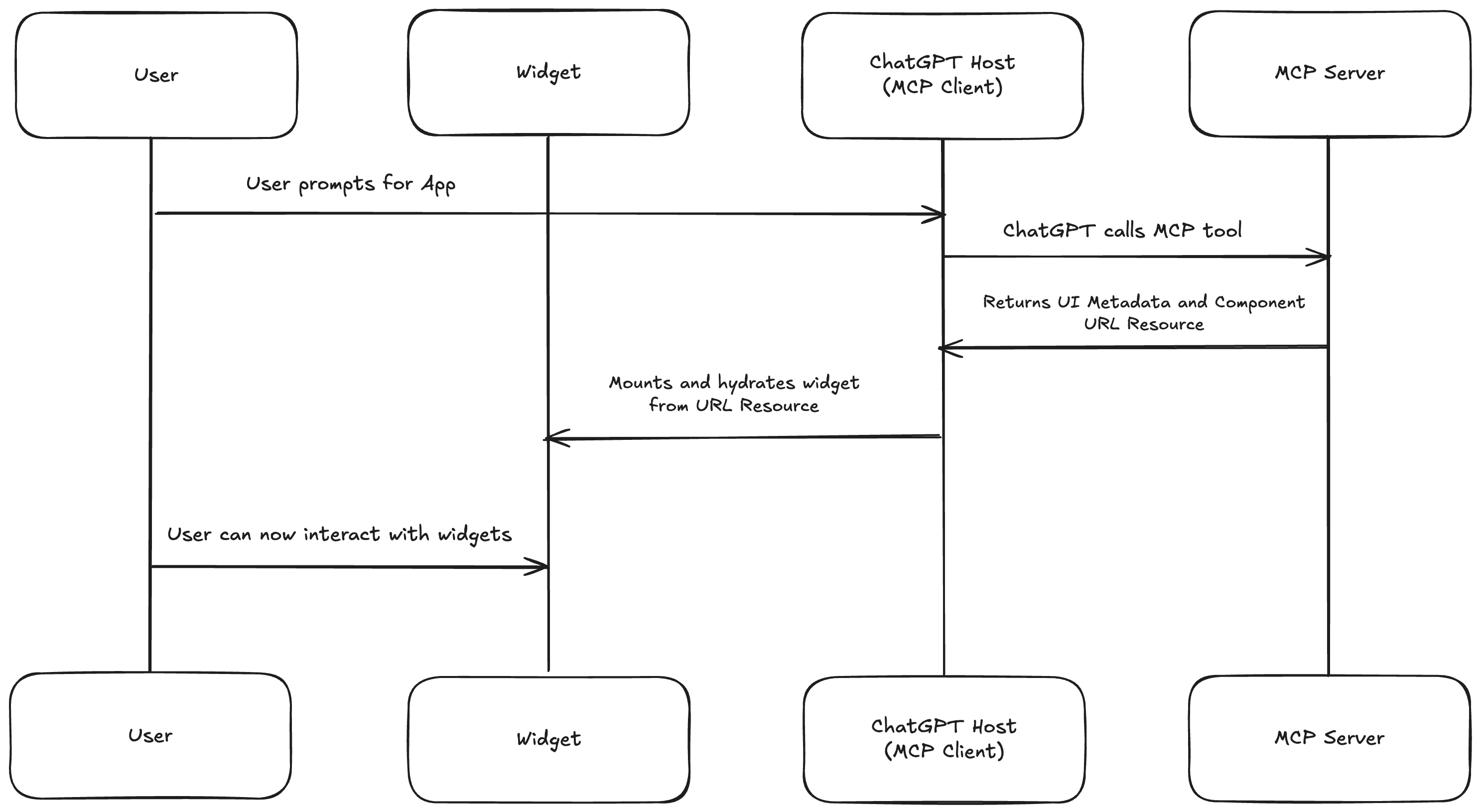
This is the message flow of what happens when a widget is loaded into ChatGPT:
- The user prompts to load an App
- ChatGPT calls the corresponding MCP Tool
- Within its response, it contains information about the location of the UI in its metadata
- From this information, the Host then mounts and hydrates the widget.
- The user is now able to interact with that widget.
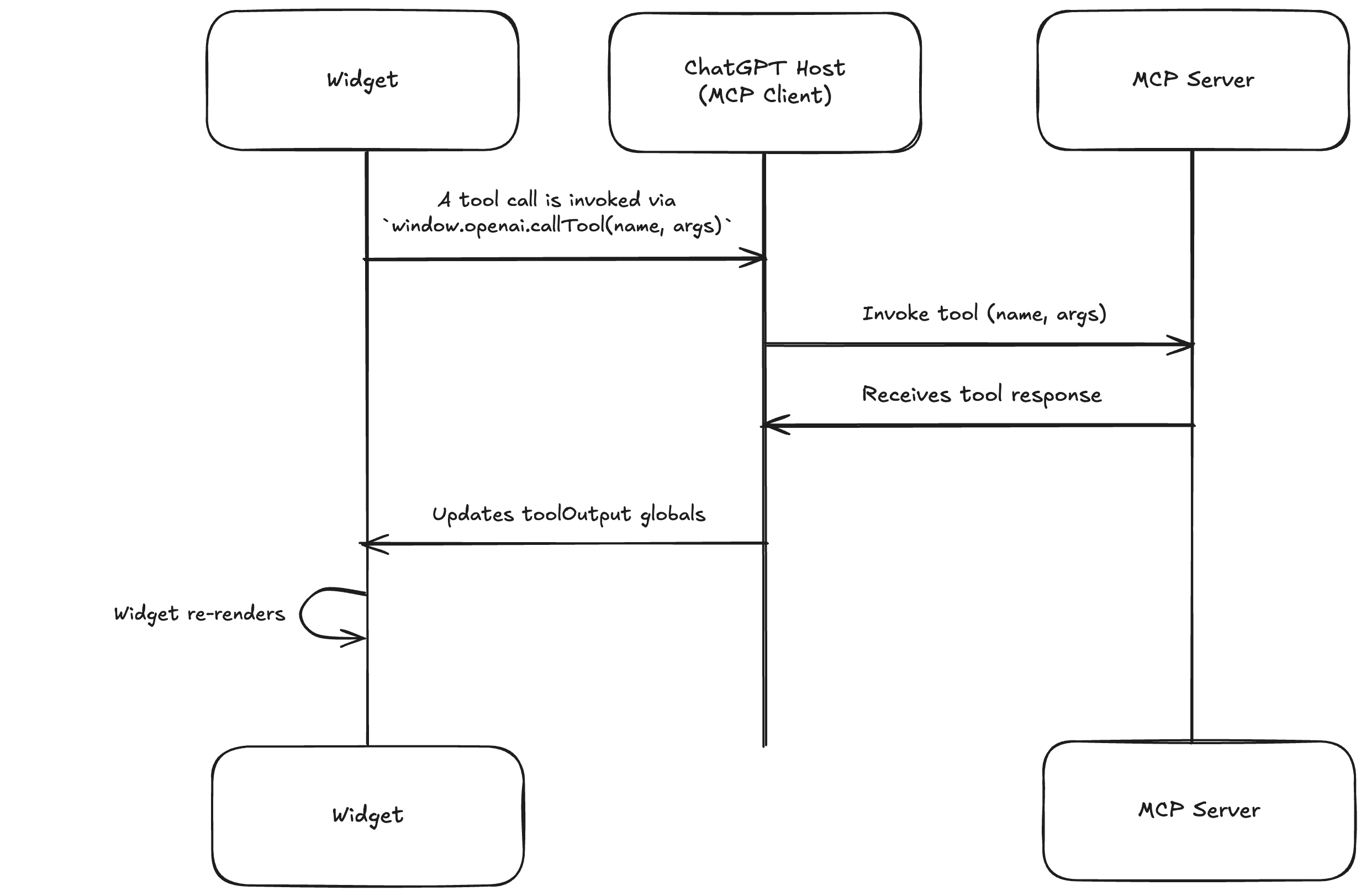
This is the flow of a tool call in OpenAI Apps:
- A tool call is invoked directly in the widget via the window.openai bridge.
- The ChatGPT host then uses this to directly invoke the MCP server
- After it receives the response, it updates its global values, forcing the widget to re-render with the new information.
Hooks for the window.openai API
We built a couple of React hooks in the hooks/ directory that allows your widgets to interact with the window.openai API in your React components. Here are the capabilities:
useCallTool() - Call a tool within a widget
Here's an example of a widget that invokes a tool call using XMCP with Next.js:
type CounterOutput = {
  counter: number;
  incrementAmount: number;
};

export default function WidgetAccessibleTool() {
  const output = useToolOutput<CounterOutput>();
  const callTool = useCallTool();
  const [isIncrementing, setIsIncrementing] = useState(false);

  // Use default values if no tool output available
  const defaultOutput: CounterOutput = {
    counter: 0,
    incrementAmount: 1,
  };

  const counterOutput = output || defaultOutput;

  const handleIncrement = async (amount: number) => {
    if (!callTool) {
      console.error("callTool not available");
      return;
    }

    setIsIncrementing(true);
    try {
      await callTool("increment", {
        counter: counterOutput.counter,
        incrementAmount: amount,
      });
    } catch (error) {
      console.error("Failed to increment:", error);
    } finally {
      setIsIncrementing(false);
    }
  };

  return (
    <div>
      <div>Count: {counterOutput.counter}</div>
      <div className="flex gap-3">
        <button
          onClick={() => handleIncrement(5)}
          disabled={isIncrementing || !callTool}
        >
          {isIncrementing ? "Calling..." : "+5"}
        </button>
      </div>
    </div>
  );
}
Widgets can invoke MCP tools directly using window.openai.callTool(). Subtle, but mark your tool with "openai/widgetAccessible": true to enable this. Here is an example of calling an increment tool directly within a widget. We use the useCallTool() hook which handles the window.openai bridge for us, and we're able to call any widget accessible MCP tool directly from the code. After the tool is run, useToolOutput() picks up on the result of that tool and the widget re-renders using the results from the tool output.
useSendMessage() - send message back to conversation
This hook inserts messages into the conversation from your widget. Whereas callTool() can only modify the current widget state, sendMessage() allows you to inject messages back into the chat and even invoke new UI.
const locations = [
  { label: "New York", value: "New York" },
  { label: "Chicago", value: "Chicago" },
  { label: "London", value: "London" },
  { label: "San Francisco", value: "San Francisco" },
];

export default function SendMessageWidget() {
  const sendMessage = useSendMessage();
  const [location, setLocation] = useState("");
  const [status, setStatus] = useState("");

  const handleSendMessage = async () => {
    if (!location) {
      setStatus("Pick a location before sending a suggestion.");
      return;
    }

    setStatus("Sending...");
    try {
      await sendMessage(`show me all the pizza places in ${location}`);
      setStatus(`Asked for pizza places in ${location}.`);
    } catch (error) {
      setStatus("Message failed to send.");
    }
  };

  return (
    <section>
      <h1>Send a Pizza Follow-up</h1>
      <p>
        Choose a city and send a follow-up message that asks for pizza places in
        that location.
      </p>

      <label>
        Location
        <select value={location} onChange={(event) => setLocation(event.target.value)}>
          {locations.map((city) => (
            <option key={city.value} value={city.value}>
              {city.label}
            </option>
          ))}
        </select>
      </label>

      <button onClick={handleSendMessage}>Find pizza places</button>

      {status && <div>{status}</div>}
    </section>
  );
}
The above example illustrates this well. It asks the user for their city, then a follow up message is sent "Show me all pizza places in <location>". This message is sent directly to ChatGPT which should trigger ChatGPT to call another tool and render a new pizza widget.
Open External Links
export default function OpenExternalWidget() {
  const openExternal = useOpenExternal();
  const [status, setStatus] = useState("");

  const handleOpenExternal = () => {
    setStatus("Opening pizza homepage...");
    try {
      openExternal("https://pizza.example.com/");
      setStatus("Pizza homepage opened.");
    } catch (error) {
      setStatus("Could not open the pizza homepage.");
    }
  };

  return (
    <section>
      <h1>Open Pizza Homepage</h1>
      <p>
        Use openExternal() to send the user to a pizza ordering site when they
        want to browse the full menu.
      </p>

      <button onClick={handleOpenExternal}>Visit pizza homepage</button>

      {status && <div>{status}</div>}
    </section>
  );
}
openExternal() helps navigate users to external URLs in mobile and web apps. This example highlights the use of the useOpenExternal() hook, which implements the window.openai.openExternal, which is ChatGPT's native link handler. If this fails, it falls back to the standard web window.open()API. This example highlights a use case of directing users to the pizza store's homepage, in case they would like to learn more.
Change Display Mode
useRequestDisplayMode(), requests different presentation modes: inline (default embedded view), pip (picture-in-picture overlay, pinned to the top of the chat) or fullscreen. useDisplayMode() returns whatever presentation mode the widget is currently in. The example below shows how both of these hooks can be used together and allows the user to select a desired display mode.
type DisplayMode = "pip" | "inline" | "fullscreen";

export default function DisplayModeWidget() {
  const requestDisplayMode = useRequestDisplayMode();
  const currentDisplayMode = useDisplayMode();
  const [requestedMode, setRequestedMode] = useState<DisplayMode>("fullscreen");
  const [isLoading, setIsLoading] = useState(false);

  const handleRequestDisplayMode = async () => {
    setIsLoading(true);
    try {
      await requestDisplayMode(requestedMode);
    } catch (error) {
      console.error("An error occurred: ", error);
    } finally {
      setIsLoading(false);
    }
  };

  return (
    <div>
      <h1>Change Display Mode</h1>
      <p>
        Transition between inline, PiP, and fullscreen using
        requestDisplayMode()
      </p>
      <div>
        <span>Current Mode: {currentDisplayMode}</span>
        <div>
          <label>Request Mode</label>
          <div className="grid grid-cols-3 gap-2">
            {(["inline", "pip", "fullscreen"]).map((mode) => (
              <button key={mode} onClick={() => setRequestedMode(mode)}>
                {mode}
              </button>
            ))}
          </div>
        </div>

        <button onClick={handleRequestDisplayMode} disabled={isLoading}>
          {isLoading ? "Requesting..." : "Request Display Mode"}
        </button>
      </div>
    </div>
  );
}
useWidgetState() - Save Widget State
setWidgetState() persists component state across sessions. The widget state is a JSON object used to describe the state of the widget. One thing to consider is that everything in the state is exposed to the model so keep it under ~4k tokens. This can be useful so the model always has context of what happened in the widget for follow up messages in the chat. In this example, if the user sets their location, we can update that in the widget state so it persists and so the model is also aware of subsequent tool calls or whatever it may need.
const locations = [
  { label: "New York", value: "new-york" },
  { label: "London", value: "london" },
  { label: "Tokyo", value: "tokyo" },
];

export default function WidgetStateWidget() {
  const [widgetState, setWidgetState] = useWidgetState();
  const currentLocation = widgetState.location ?? "";

  const handleLocationChange = (event) => {
    const location = event.target.value;
    setWidgetState({ location });
  };

  return (
    <section>
      <h1>Choose Your Location</h1>
      <p>
        This widget stores the selected city so it can be restored when the
        widget loads again.
      </p>

      <label>
        Location
        <select value={currentLocation} onChange={handleLocationChange}>
          {locations.map((option) => (
            <option key={option.value} value={option.value}>
              {option.label}
            </option>
          ))}
        </select>
      </label>

      <div>
        <strong>Widget state:</strong>{" "}
        {currentLocation ? currentLocation : "not set"}
      </div>
    </section>
  );
}
Optimizing metadata
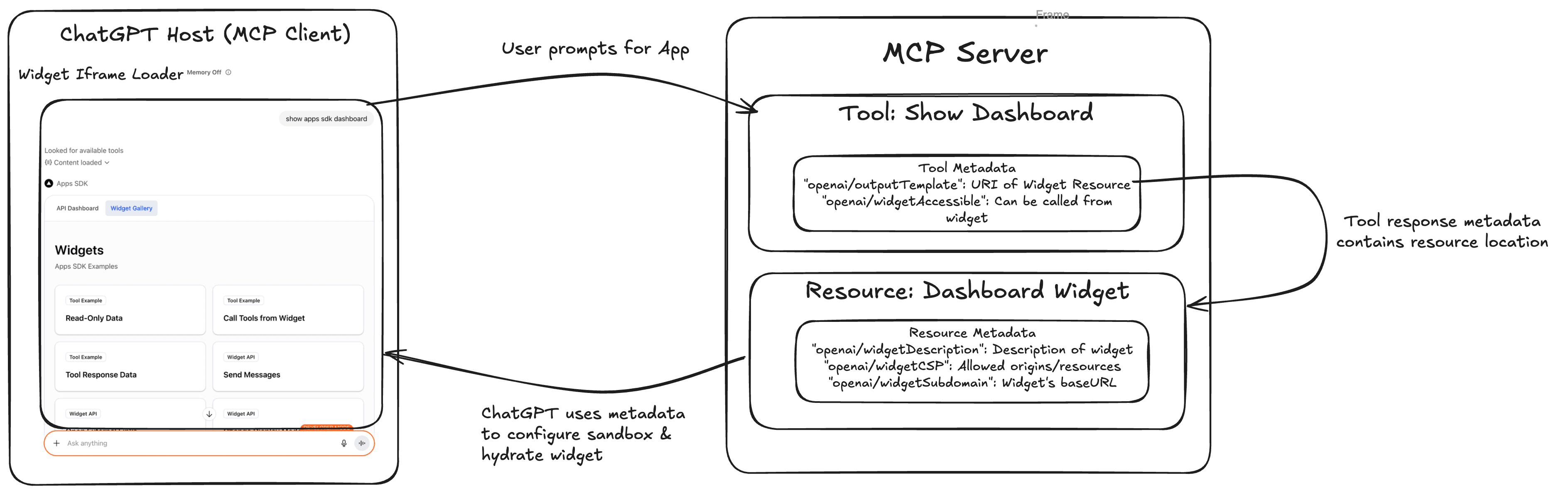
These are some configuration options that control how ChatGPT renders and secures your widgets. Would recommend giving these a read to give your app the edge, since you want the model to always choose your app:
- Widget Description: Set "openai/widgetDescription" to provide human-readable summaries that reduce redundant narration by the model.
- Security Policy (CSP): Configures Content Security Policy with "openai/widgetCSP" to specify allowed domains for network requests and resources.
- Widget Subdomain: Optional dedicated subdomain for hosted components
Here's an example of how ChatGPT reads and uses the metadata to render widgets:
Try it out on ChatGPT
The app is hosted at https://apps-sdk-everything.vercel.app/mcp. Connect the app to ChatGPT without Authentication:
Once connected, type the prompt "Show apps sdk dashboard". I encourage you to look at the source code to follow along.
Test ChatGPT apps locally on MCPJam
Developing with Apps SDK is currently restricted. You have to ngrok your local server, and expose it publicly to develop it with ChatGPT developer mode. We built Apps SDK support in the MCPJam inspector so you can test your Apps SDK server locally. With MCPJam you can:
- Connect to and develop an Apps SDK server entirely local. No ngroking needed.
- Deterministically trigger tools and resources. View your widget within the inspector UI.
- Interact with your server in the LLM playground, simulating a real production environment.
To try it out:
- Launch MCPJam inspector
npx @mcpjam/inspector@latest- Connect via HTTP at
https://apps-sdk-everything.vercel.app/mcpand invoke a tool - Watch the widget render in the inspector and test it out!
Please also consider joining our Discord group! Happy to help any time, or discuss anything MCP related.
Contributing
The app includes more widgets, but there's still more to implement to claim it has full parity. All contributions are welcome, please reach out to me via LinkedIn or send me a message to [email protected]. Stay tuned for next week, we'll launch a Step by Step guide to build and deploy your first ChatGPT App!