A look at OpenAI's Apps SDK under the hood
If you'd told me two years ago that I'd be able to create a Spotify playlist, book a trip to Spain, and order dinner from Doordash all through ChatGPT, I would've told you that's fantasy. All of this is now possible through OpenAI's announcement of ChatGPT apps, bringing users a rich UI experience along with ChatGPT's natural language.
OpenAI launched apps with 7 partnering companies like Zillow and Spotify, with many more apps coming. The best part of their ecosystem is their release of the Apps SDK, opening the door to anyone to create their own app.
This is an exciting opportunity for all developers. ChatGPT has 800 million weekly active users, with 10% of the global adult population using it. The distribution potential for OpenAI apps is immense. This is possibly the Apple App Store moment for AI. Let's dive into the Apps SDK and understand how it works under the hood.
Role of Model Context Protocol (MCP) in the SDK
Under the hood, Apps SDK is built on top of the Model Context Protocol (MCP). We are going to assume that you know your way around MCP in the rest of the article. If you don't, we highly recommend starting by reading about MCP before diving into Apps SDK.
There are two main components to an Apps SDK app: the MCP server and the web app views (widgets). The MCP server and its tools are exposed to the LLM.
Here's the high-level flow when a user asks for an app experience:
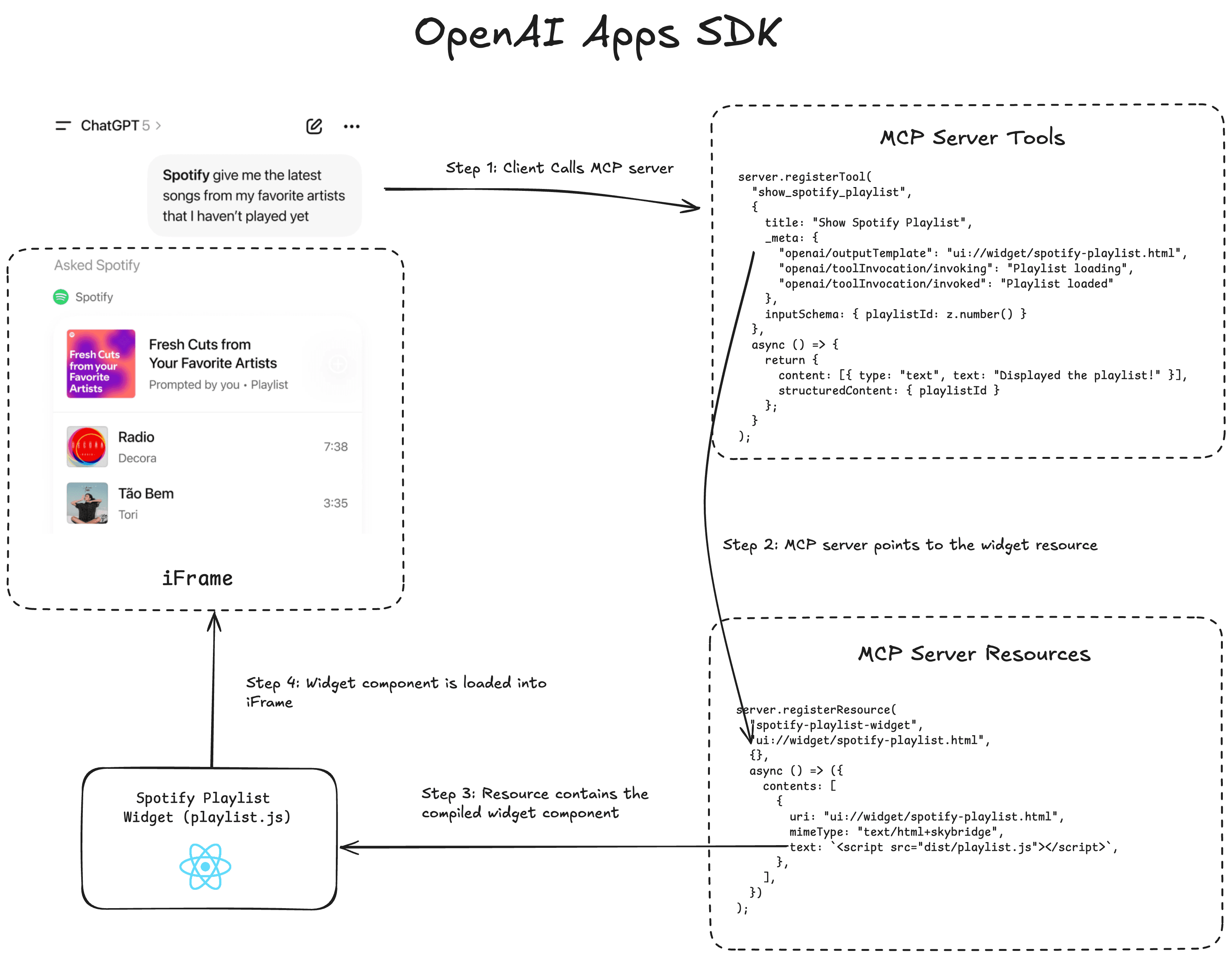
- When you ask the client (LLM) “Show me homes on Zillow”, it's going to call the Zillow MCP tool.
- The MCP tool points to the corresponding MCP resource in the
_metatag. The MCP resource contains a script in its contents, which is the compiled react component that is to be rendered. - The ChatGPT app now pulls this resource containing the widget script from the MCP server for rendering.
- The client loads the widget resource into an iFrame, rendering your app as a UI.
In the next section, we take a look at an Apps SDK structure to understand how MCP servers and widgets are packaged.
The file structure of an app built with Apps SDK
OpenAI recommends splitting your code into a server folder and a web folder. The server runs your MCP implementation; the web folder builds the widget bundle that is served as the resource.
Recommended project layout
app/
  server/
    # MCP server code
  web/
    package.json
    tsconfig.json
    src/component.tsx       # Widget React component
    dist/component.js       # Compiled widget bundle
The MCP server exposes HTML code with a script that contains the compiled JS file. This means the UI widget can be crafted with any frontend framework (React, Svelte, etc.), as long as in the end, the code gets built into a compiled JS file.
Note that this file structure is not required. We've seen developers host the server and the widgets in two separate servers. As long as the server correctly points to the widget, even if the widget is served remotely, it can still serve the UI back to the LLM.
Anatomy of an Apps SDK MCP server
Building an MCP server for Apps SDK is mostly like building any other MCP server. An Apps SDK server requires the usual MCP tools and a special flavor of MCP resources. The LLM will take the initiative to call your tools when it makes sense, and it will pull the associated MCP server resource containing the HTML content to display a widget.
MCP tool
The MCP server tool should point to a resource for a widget in the tool descriptor. You must link the template URI in the tool descriptor using the _meta tag under openai/outputTemplate. You must make sure that the URI in the _meta tag matches the URI that you set in the corresponding MCP resource.
Registering a tool with a widget template
server.registerTool(
  "show_spotify_playlist",
  {
    title: "Show Spotify Playlist",
    _meta: {
      "openai/outputTemplate": "ui://widget/spotify-playlist.html",
      "openai/toolInvocation/invoking": "Playlist loading",
      "openai/toolInvocation/invoked": "Playlist loaded",
    },
    inputSchema: { playlistId: z.number() },
  },
  async ({ playlistId }) => {
    return {
      content: [{ type: "text", text: "Displayed the playlist!" }],
      structuredContent: { playlistId },
    };
  }
);
You can also pass in a structuredContent value in the return value. This data is used to hydrate your widget component. You'll read more on how that's used in the "hydrating the widget" section of this article below.
MCP resource
The MCP resource contains the JS script that is sent back to the client for rendering. The resource URI must start with ui:// and it must match the same URI as what's set in the tool's openai/outputTemplate, otherwise it won't be discovered and rendered.
The resource should also contain a mimeType and text. The mimeType should be text/html+skybridge, and the text should contain the HTML code with JS script to be sent back to the client.
Exposing the widget resource
server.registerResource(
  "spotify-playlist-widget",
  "ui://widget/spotify-playlist.html",
  {},
  async () => ({
    contents: [
      {
        uri: "ui://widget/spotify-playlist.html",
        mimeType: "text/html+skybridge",
        text: '<script src="dist/playlist.js"></script>',
      },
    ],
  })
);
Understanding the window.openai API and widgets
We talked about the MCP server component, now let's take a look at the web component of an Apps SDK file, the widgets. Widgets are just single page React apps. The React component gets compiled into a JS file, which is then loaded into the iFrame to be rendered.
The widget itself is just a React component, nothing special there. However, when it's rendered in a client that supports Apps SDK, the React component has access to the window.openai API. The API bridges interactions between your React app, and the LLM client. Here are some takeaways on what you can do with window.openai:
Hydrating the widget component with data
You can access data passed from the LLM to the widget component through the toolOutput API. MCP server tools can send over information to the widget by passing in that data from structuredContent
Reading structured content in the widget
server.registerTool(
  "kanban-board",
  {
    title: "Show Kanban Board",
    _meta: {
      "openai/outputTemplate": "ui://widget/kanban-board.html",
      "openai/toolInvocation/invoking": "Displaying the board",
      "openai/toolInvocation/invoked": "Displayed the board"
    },
    inputSchema: { tasks: z.string() }
  },
  async () => {
    return {
      content: [{ type: "text", text: "Displayed the kanban board!" }],
      structuredContent: {
        columns: board.columns.map((column) => ({
          id: column.id,
          title: column.title,
          tasks: column.tasks.slice(0, 5)
        }))
}
    };
  }
);
In the widget component, you can access that data by calling window.openai.toolOutput. This is how the widgets maintain state. You can think of using structuredContent and window.openai.toolOutput as a way to pass props into the React component.
This is what fetching the structuredData in the widget looks like:
Reading structured content in the widget
const { columns } = window.openai.toolOutput;Persisting app state
You can persist the UI state with the window.openai.setWidgetState API. Information passed into this API is sent back to the client, and travels throughout the conversation. You can store UI state like selected tab, open/collapsed, or any short term key value data you'd like to store. This is similar to a browser's localStorage.
Once you persist state, you can fetch that state in the UI with window.openai.widgetState API.
Invoking MCP server tools
You can call MCP server tools directly from the widget by using the window.openai.callTool API. This is useful for making changes / taking action, like ordering a Pizza by calling the order_pizza tool if you're interacting with a Pizza widget.
Calling another tool from the widget
window.openai?.callTool("order_pizza", { order: "pepperoni", qty: 2 });Sending messages back to the LLM
You can send a message back to the LLM as a follow up by using the window.openai.sendFollowUpMessage API. This sends text back to the LLM which is injected into the chat conversation.
Triggering a follow-up message
await window.openai?.sendFollowupMessage({
  prompt: "Draft a tasting itinerary for the pizzerias I favorited.",
});
This is a high-level overview of the windows.openai API, but there's a lot more to cover. This is the most important part of learning about Apps SDK apps, so I highly recommend taking the time to go in-depth on the window.openai documentation.
Subscribe to the blog
We share our learnings with you every week.
Testing out Apps SDK servers
Developing with Apps SDK is currently restricted. You have to ngrok your local server, and expose it publicly to develop it with ChatGPT developer mode. We built Apps SDK support in the MCPJam inspector so you can test your Apps SDK server locally. With MCPJam you can:
- Connect to and develop an Apps SDK server entirely local. No ngroking needed.
- Deterministically trigger tools and resources. View your widget within the inspector UI.
- Interact with your server in the LLM playground, simulating a real production environment.
To try it out:
- Clone the Apps SDK examples repo.
- Start the
pizzaz_server_nodeMCP server. - Launch MCPJam inspector beta:
npx -y @mcpjam/inspector@latest - Connect via SSE at
http://localhost:8000/mcpand invoke a tool. - Watch the widget render in the inspector and iterate quickly.
Please also consider joining our Discord group! Happy to help any time, or discuss anything MCP related.
Besides reading the docs, I highly recommend playing around with examples of Apps SDK projects. OpenAI has a repository of official examples you can find here. Stytch's Chatagotchi demo is also a great example of how to build an Apps SDK server with built in Auth.
Hosting an MCP server
If you have an Apps SDK server, I highly recommend you check out our partners at Alpic. They have really great support for hosting MCP servers and widget assets so that anyone can connect to your app.
Alpic provides an MCP-first cloud platform that makes it very easy to deploy, monitor & scale MCP servers. You can host an MCP server built in Typescript & Python (for now), and they have out of the box analytics so you can understand how people are using your server.
You can instantly set up an Apps SDK project with Alpic's Apps SDK template.